 Cart
Cart
|
Home > Online Product Documentation > Table of Contents > Editing Tools of the Diagram Tab Editing Tools of the Diagram TabMany of the operations you perform in the Diagram tab can be performed in a number of ways, menus and tool bars being the most common. This section briefly describes menu and tool bar use, and introduces two additional features, for defining XML Schema - drag-and-drop and QuickEdit.
Menus and Tool Bars
The complete set of available operations is defined by the menu system. The tool bar represents a subset of menu operations. The top-level menu (
XMLSchema > Diagram), the shortcut menus, and the tool bar are context sensitive - only operations that are permitted given the current context are available. For example, if you want to add an element to a
Each of these actions let you add a
new node, in this case, an
Drag-and-Drop
An alternative to using the menu and the tool bar is to use
drag-and-drop, which lets you add an
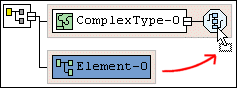
existing node to another node's definition. For example, say you wanted to add an existing
Use drag-and-drop any time you want to define a node using a node already defined in your XML Schema.
Typical targets of drag-and-drop operations include the following nodes Typical sources for drag-and-drop operations include the following nodes
QuickEditQuickEdit is a feature of the Diagram tab that streamlines common editing operations. For example, you can use QuickEdit to
For example, the following structure was created by selecting QuickEdit > Add Elements Choice from the
QuickEdit appears on the top-level and shortcut menus in those contexts in which it is available, and it is also available on the tool bar by pressing the QuickEdit button
|

XML PRODUCTIVITY THROUGH INNOVATION ™
 on the tool bar and select
Element from the drop-down list it displays
on the tool bar and select
Element from the drop-down list it displays

 .
.


