Home >
Online Product Documentation >
Table of Contents >
Document Grid
Document Grid
The document grid displays the input file's layout, including spaces, field separators, and control characters. The input file's appearance in the document grid is determined, in part, by its format.
This section covers the following topics:
Example - .txt Files
Stylus Studio uses slightly different displays for character-separated and fixed-width
.txt files. Consider this file, which uses commas as the field separator:
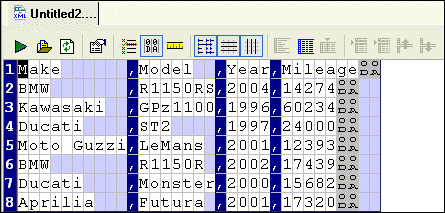
Figure 142 shows how this character-separated input file appears in the Convert to XML Editor's document grid. By default, Stylus Studio aligns columns and fills the empty cells of the shorter rows with a light blue to aid readability:
|
|
Figure 142. Character-Separated File in the Convert to XML Document Grid
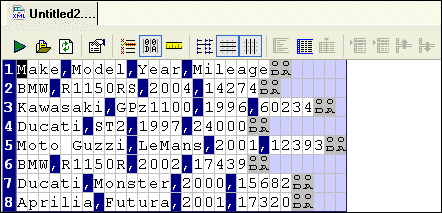
You can remove these spaces from the display and view the file in its native format by clicking the
Align Fields button (
 ) on the tool bar, or by selecting
Convert to XML > Align Fields on the menu. This results in the layout shown in
Figure 143.
) on the tool bar, or by selecting
Convert to XML > Align Fields on the menu. This results in the layout shown in
Figure 143.
|
|
Figure 143. Character-Separated File without Aligned Fields
Fixed-width files are displayed in a slightly different fashion. Consider this fixed-width input file:
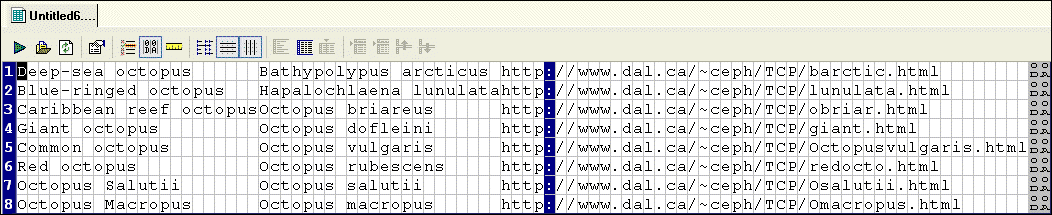
In a fixed-width file, the empty cells represent actual values (spaces) in the input file. In the second row of this input file, for example, there are three spaces between the first and second columns:
|
|
Figure 144. Fixed-Width File in the Convert to XML Document Grid
Display of Delimiting and Control Characters
Stylus Studio displays delimiting and control characters in a way that distinguishes them from plain text values.
- Delimiting characters, like the comma used in the example in
Figure 142, are displayed with a dark blue background. For files that include sub-fields or arrays (like EDI, for example), the sub-field separator character is shown in a different shade of blue.
- Control characters (line feeds and carriage returns, for example) are shown using their abbreviated ASCII value. A carriage return (0x0D) line feed (0x0A) is shown as
 , for example. ASCII abbreviations are aligned vertically, to preserve space, as shown in this representation of the ASCII value for tab (0x09):
 .
.
Stylus Studio understands all Unicode characters,. When editing
Line-Oriented Region and
Field Name values in the
Properties window, you can enter mnemonic values for the C1 and C0 control characters in the following ranges:
- C0 control characters with a value from >= 0x00 to <= 0x1F
- C1 control characters with a value from >=0x80 to <= 0x9F
For example, you could enter
TAB or
HT in the
Field Separator field in the
Properties window, and Stylus Studio would correctly interpret that value. For a list of commonly used control characters, see
Specifying Control Characters.
- Characters that are discarded from output (like line terminators such as CR and LF and comment lines) are displayed against a gray background.
You can hide control characters by clicking the
Toggle Control Characters button (
 ) on the tool bar, or by selecting
ConvertToXML > Toggle Control Characters from the menu.
) on the tool bar, or by selecting
ConvertToXML > Toggle Control Characters from the menu.
Document Grid Display Features
In addition to aligning fields in character-delimited files, the Convert to XML Editor's document grid has several other features that aid readability.
|
|
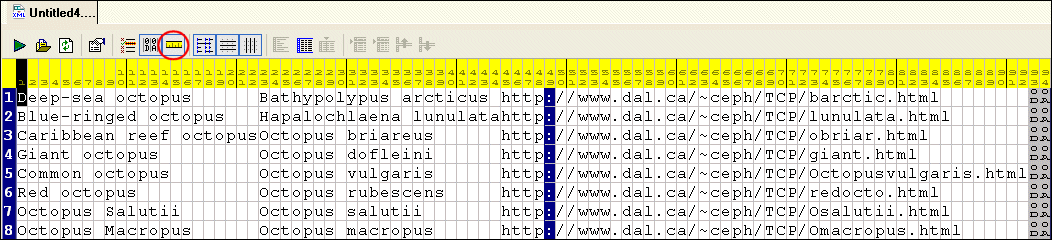
Figure 145. Ruler Helps Identify Columns
To display the ruler, click the
Toggle Ruler button (
 ) on the tool bar, or select
ConvertToXML > Toggle Ruler from the menu.
) on the tool bar, or select
ConvertToXML > Toggle Ruler from the menu.
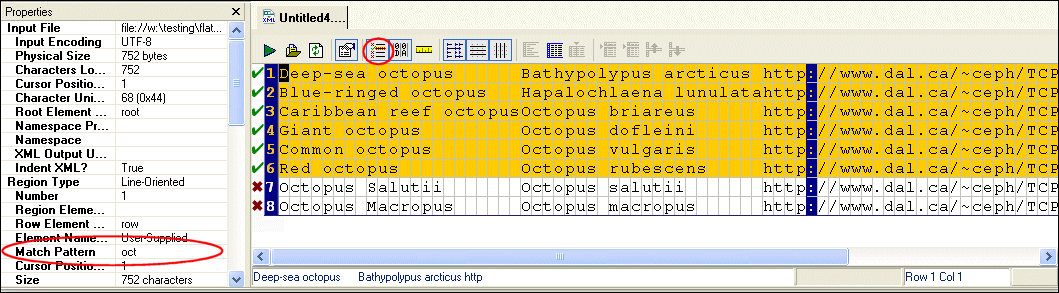
- You can highlight rows that match a pattern that you define in the
Match Pattern property in the
Properties window:
|
|
Figure 146. Matching Rows Are Displayed in Yellow
Matching rows are displayed in a dark yellow, with a green check in the grid's margin; a red x identifies rows that do not match the patter. To highlight matching rows, click the
Highlight Matching Rows button (
 ) on the tool bar, or select
ConvertToXML > Highlight Matching Rows from the menu.
) on the tool bar, or select
ConvertToXML > Highlight Matching Rows from the menu.
When you define a match pattern, only rows that match the pattern are output to XML. See
Filtering Output to learn more about using the
Match Pattern property.
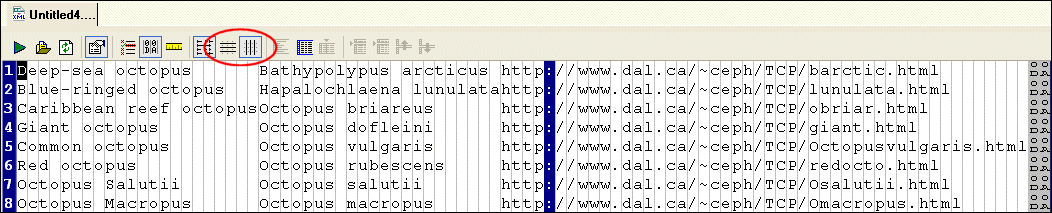
- The document grid displays both vertical and horizontal grid lines by default; you can hide/show them independently. In the example shown in
Figure 147, horizontal grid lines are hidden from the display:
|
|
Figure 147. You Can Hide Horizontal and Vertical Grid Lines
To hide horizontal and vertical grid lines, click the
Toggle Horizontal Grid Lines (
 ) and/or
Toggle Vertical Grid Lines (
) and/or
Toggle Vertical Grid Lines (
 ) buttons on the tool bar, or select
ConvertToXML > Toggle Horizontal Grid Lines and/or
Toggle Vertical Grid Lines from the menu.
) buttons on the tool bar, or select
ConvertToXML > Toggle Horizontal Grid Lines and/or
Toggle Vertical Grid Lines from the menu.
|
Tip
|
|
Hiding horizontal lines while displaying the ruler is an effective way to quickly scan columns.
|
Moving Around the Grid
You can move the cursor around the grid
- Using the Space bar on your keyboard
- Using the directional arrows and Page Up, Page Down, Home, and End keys on your keyboard
- Using your mouse (click on the character on which you want to place the cursor
- Using the navigational properties displayed in the
Properties window. Navigational properties are hidden by default. To display them, click
Toggle Navigational Properties (
 ) from the tool bar, or select
ConvertToXML >
Toggle Navigational Properties from the menu.
) from the tool bar, or select
ConvertToXML >
Toggle Navigational Properties from the menu.
|
Tip
|
|
The lower right corner of the Convert to XML Editor window displays the current row/column coordinates of the cursor.
|
 Cart
Cart