Cart
Cart|
|
Home > Online Product Documentation > Table of Contents > Defining and Joining Regions Defining and Joining RegionsAn input file can contain any number of regions; fixed-width and line-oriented can exist in the same file. The Convert to XML Editor provides tools that allow you to define new regions and join existing ones. This section covers the following topics: Defining a RegionWhen you define a region in an input file, Stylus Studio splits the region at the current cursor location. The new region starts with the character on which the cursor resided when the region was defined, but it can be of either type - fixed-width or line-oriented - regardless of the type of the original region. Consider the following input file:
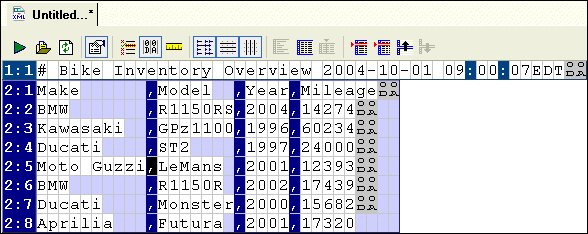
By default, Stylus Studio reads this as a file with a single region. You might decide you want your XML to distinguish headers from actual records and treat the two accordingly (not generating headers as XML, for example). When you define a new region, the Convert to XML Editor renumbers all the rows, using a region:row number format. In addition, different colors are used to help distinguish one region's rows from the next, as shown in Figure 155.
Field and row values are independent across regions. For example, the
To define a region:
1. Place the cursor in the document grid on the character with which you want to start the new region.
2. Click the
Start New Line-Oriented Region Here (
 ) or
Start New Fixed-Width Region Here (
) or
Start New Fixed-Width Region Here (
 ) button. These actions are also accessible from the
ConvertToXML menu and the shortcut menu in the Convert to XML Editor.
) button. These actions are also accessible from the
ConvertToXML menu and the shortcut menu in the Convert to XML Editor.
Stylus Studio defines the new region and renumbers existing regions accordingly. Joining RegionsYou can join regions that you define as well as regions that Stylus Studio interpreted when it first read the input file. You can join the current region to either adjacent region - the previous region, or the next region. The region type after the join operation depends on whether you are joining with the previous region or the next region.The region you are joining assumes the type of the region to which it is being joined.
To join a region:
1. Place the cursor anywhere in the region you want to join with another region.
2. Click the
Join with Previous Region (
 ) or
Join with Next Region (
) or
Join with Next Region (
 ) button. These actions are also accessible from the
ConvertToXML menu and the shortcut menu in the Convert to XML Editor.
) button. These actions are also accessible from the
ConvertToXML menu and the shortcut menu in the Convert to XML Editor.
Stylus Studio joins the region you specified in step 1with the adjacent region. |

XML PRODUCTIVITY THROUGH INNOVATION ™