|
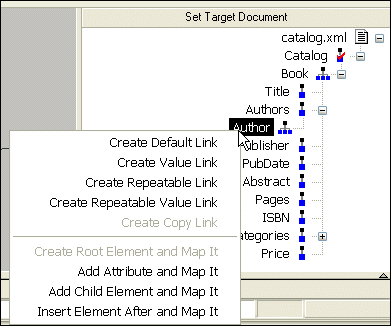
Home >Online Product Documentation >Table of Contents >Left and Right Mouse Buttons Explained Left and Right Mouse Buttons ExplainedYou can use either the left or the right mouse button to perform the drag and drop operation used to create source-target mappings in the XSLT mapper. If you use the left mouse button to perform the drag operation, the link always maps the source node to the target node without making any changes to the target structure. If you use the right mouse button, Stylus Studio displays a shortcut menu that provides you with alternatives for modifying the target structure. Using this menu, you can
|

Convert HTML to XML
Convert HTML-to-XML with a Document Wizard that quickly converts any HTML to standard XML with the click of a button! To get started, just click File, Document Wizards on the Stylus Studio menu.
JavaServer Pages IDE (JSP IDE)
The Stylus Studio JSP IDE provides syntax help and code completion for developing JSP 1.2 and JSP 2.0 applications.
Introduction to Convert to XML
Convert to XML is Stylus Studio's all-purpose utility for getting legacy data integration of all sorts into a custom XML format. This video provides an overview of the tool and walks you through a sample CSV to XML data transformation project.
Getting EDI to XML and back to EDI Again: Round Trip Engineering using Stylus Studio URL Adapters
A free online video demonstration shows how to use Stylus Studio's Adapter URL technologies to convert EDI to XML and back again. Convert, validate, view and edit EDIFACT data directly in Stylus Studio.