Cart
Cart
|
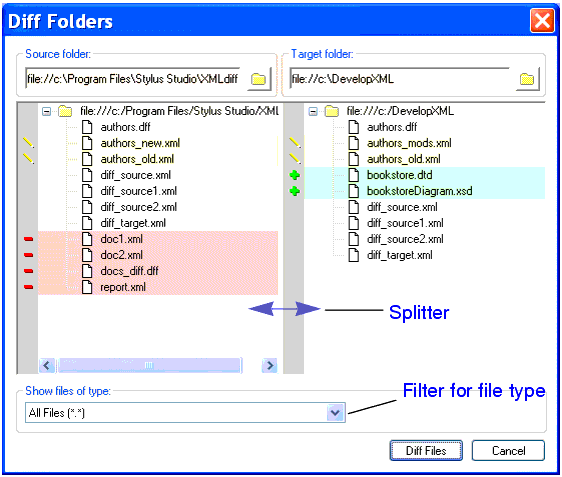
Home >Online Product Documentation >Table of Contents >Diffing Folders Diffing FoldersStylus Studio allows you to diff two folders. As shown in Figure 130, the Diff Folders dialog box displays the contents of each folder; symbols and colors, described in Symbols and Background Colors, identify the types of changes in the respective folders. This section covers the following topics: FeaturesThe Diff Folders dialog box has several features that make it easy to diff folders and the XML documents they contain:
How to Diff FoldersTo diff folders:
1. Select Tools > Show Differences In > Folders from the Stylus Studio menu.
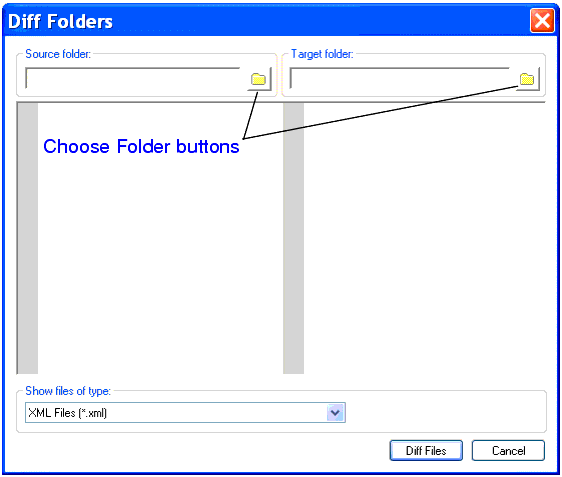
The Diff Folders dialog box appears.
2. Click the Choose Source Folder button (  ).
).
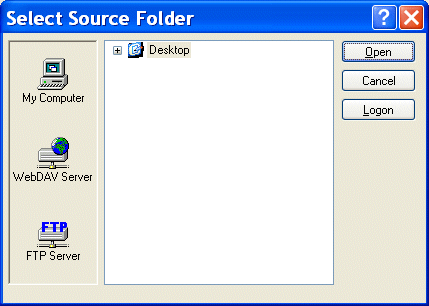
The Select Source Folder dialog box appears.
3. Expand the Desktop tree and navigate to the folder you want to use as the source folder for the diff.
4. Click Open.
The folder is displayed in the Source folder window of the Diff Folders dialog box. Stylus Studio performs the diff as soon as you select the target folder for comparison.
6. Optionally, use the Show files of type drop-down list to filter the display to show only those files of the type you specify. (By default, Stylus Studio shows XML files - files with a .xml extension.)
How to Diff Documents from the Diff Folders Dialog BoxYou can diff XML documents in the source and target folders directly from the Diff Folders dialog box. To diff two files from the Diff Folders dialog box:
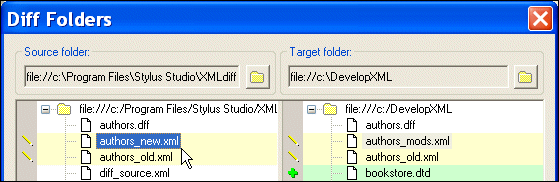
1. Click the file you want to diff.
The document is shown as selected in both the Source folder and Target folder windows. In this illustration, the document
If you select a document that cannot be diffed, you will not see the selection in the opposite window.
2. Click the Diff Files button.
Stylus Studio displays the XML Diff Viewer window. For more information on diffing documents, see Diffing a Pair of XML Documents. |

XML PRODUCTIVITY THROUGH INNOVATION ™