Cart
Cart
|
Home >Online Product Documentation >Table of Contents >Working with Columns Working with ColumnsStylus Studio provides several features to help you work with table columns in the Grid tab. Changes you make to tables in the Grid tab, such as adding a new column or reordering existing columns, are reflected in the underlying XML document. This section covers the following topics: Selecting a Column
Column operations can be performed when you select any cell in a column. When a cell (and, therefore, its column) is selected, it is highlighted with a yellow outline. As shown in Figure 119, the To select a column, click any cell in the column you wish to select.Adding ColumnsYou can add two types of columns to tables in the Grid tab - attribute columns and element columns. The procedure for adding both types of columns is the same. When you add a column, it is inserted immediately after the last column of its type. You can move columns after you create them. To add a column:
1. Select the row in which you want to add a column.
2. Click Add Attribute Column (  ) or Add Element Column (
 ). These actions are also available from the XML > Grid Editing menu and from the grid shortcut menu.
The column is added to the table.
3. If you want, move the column to a new location in the row. See Reordering Columns.
Deleting ColumnsTo delete a column:
1. Select a cell in the column you want to delete.
A yellow border appears around the cell you select.
2. Click Delete Column (  ). This action is also available from the XML > Grid Editing menu and from the grid shortcut menu.
The column is deleted from the table. Reordering ColumnsYou can reorder columns in the grid by dragging them to the position you desire. To reorder a column:
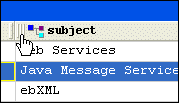
1. Place the pointer on the left handle in the column header.
2. Press and hold mouse button one.
The cursor changes shape, as shown here.
3. Drag the column to the location in the row you want.
4. Release the mouse button.
The column is placed in the new location within the row. Renaming ColumnsYou can rename columns in the grid. This has the effect of renaming the corresponding attribute or element name in the underlying XML document. To rename a column:
1. Select a cell in the column you want to rename.
A yellow border appears around the cell you select.
2. Click Rename Column (  ). This action is also available from the XML > Grid Editing menu and from the column shortcut menu.
The column is renamed. Changing a ValueYou can change element and attribute values. To change a value:
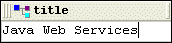
1. Double-click the cell whose value you want to change.
The cell field becomes editable, as shown here.
2. Edit the value as required.
3. Press Enter.
|

XML PRODUCTIVITY THROUGH INNOVATION ™