Cart
Cart|
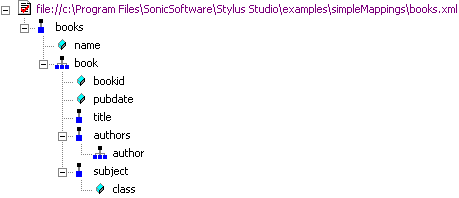
Home > Online Product Documentation > Table of Contents > How Source Documents are Displayed How Source Documents are DisplayedA source document is represented in the mapper using a document icon; its name is displayed using a different color to help distinguish the document from elements and attributes. The document icon is modified based on the source document's association with other documents. See Source Documents and XML Instances for more information on this topic. By default, only the file name itself is displayed; if you want, you can display the document's full path by selecting Show Full Path on the document's shortcut menu. (Right-click on the document name to display the shortcut menu.)
Source documents are displayed using the tree view; you can use your standard keyboard's *, +, and - number pad keys to expand and collapse selected documents. Document structure symbolsStylus Studio uses the following symbols to represent nodes in both source and target document structures
See Source document icons to learn about the different ways source document icons are depicted. Getting source document detailsIf you want details about the source document that are not available in tree view, you can open the document by selecting Open from the document's shortcut menu. When you open a document this way, Stylus Studio displays it in the XML editor. XSD and DTD documents are displayed on the XML editor's Schema tab. |

XML PRODUCTIVITY THROUGH INNOVATION ™