How to Define a Keyboard Shortcut

To define a keyboard shortcut for a Stylus Studio task:
1. From the Stylus Studio menu bar, select Tools > Keyboard.

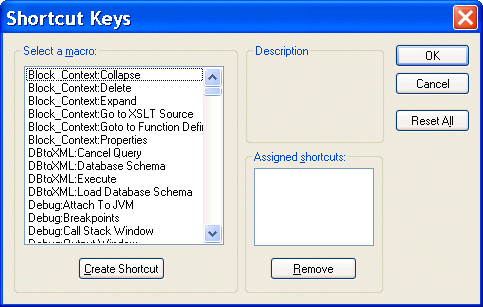
The Shortcut Keys dialog box appears.

Figure 99. Defining Shortcut Keys

2. In the Select a macro: field, select the macro for which you want to define a shortcut.

Tip


When you select a macro, Stylus Studio displays a description of what that macro does.

3. Click Create Shortcut.

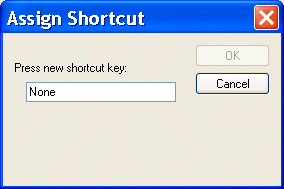
The Assign Shortcut dialog box appears.

Figure 100. Assigning a Shortcut Key

4. Press the key or keys that you want to be the shortcut. For example, Ctrl+E, F7, Alt+P.

The Assign Shortcut dialog box displays a message indicating whether or not that key combination is currently in use.

5. If the shortcut key is not already in use, click the OK button. Otherwise, try another shortcut key.

Stylus Studio closes the Assign Shortcut dialog box.

6. Click OK in the Shortcut Keys dialog box.

SQL Server Tools

SQL Server Tools in Stylus Studio simplify working with relational and XML data including exporting data from a SQL Server database into XML and importing XML data back into SQL Server. Supports Microsoft SQL Server 2000 and Microsoft SQL Server 2005

XML Generator

Create sample XML instance documents from any XML Schema using the XML Generator. The generated XML document is always valid, well-formed XML!

Forest & Paper Products

Many forest & paper product companies realize the best XML suite doesn't have "pay per" features. That's why these top forest & paper product companies choose Stylus Studio 2006 to get the world's best XML features all in one bundle!

Stylus Most Wanted

Site Map | Privacy Policy | Terms of Use | Trademarks
Free Stylus Studio XML Training:
W3C Member
Stylus Studio® and DataDirect XQuery™are products from DataDirect Technologies, is a registered trademark of Progress Software Corporation, in the U.S. and other countries. © 2004-2007 All Rights Reserved.