Cart
Cart
|
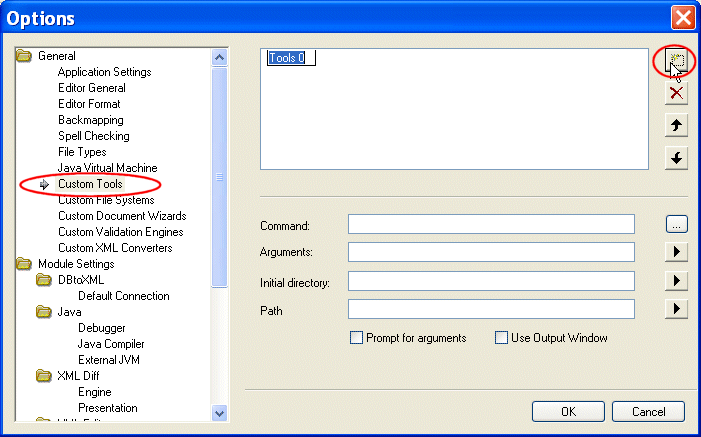
Home > Online Product Documentation > Table of Contents > Defining Custom Tools Defining Custom ToolsStylus Studio allows you to define custom tools to run alternative editors, processors, preprocessors, or postprocessors. For example, you can specify a custom tool that configures Internet Explorer to display the document you are working on. After you define a custom tool, Stylus Studio adds an entry to its Tools menu - select Tools and then your tool. The order in which the tool names appear in the Custom Tools options page is the order in which the tool names appear in the Stylus Studio Tools menu. To define a custom tool:
1. From the Stylus Studio menu bar, select
Tools
>
Options.
Stylus Studio displays the Options dialog box.
2. Click
Custom Tools to display the
Custom Tools page.
3. In the
Custom Tools page, click
Define New Tool
 .
.
Stylus Studio displays an entry field for the tool name.
4. Enter the name as you want it to appear in the Stylus Studio
Tools menu.
5. In the
Command field, specify or select the absolute path for the command that runs your tool. This must be a
.exe,
.bat, or
.cmd file.
6. In the
Arguments field, specify any arguments your tool requires. You can click
 to display a drop-down list that includes
File Path,
File Dir,
File Name,
File Extension, and
Classpath.
to display a drop-down list that includes
File Path,
File Dir,
File Name,
File Extension, and
Classpath.
7. In the
Initial Directory field, type the absolute path for the directory that contains any files or directories needed by your custom tool.
8. In the
Path field, type any paths that need to be defined and that are not already defined in your
PATH environment variable.
9. If you want Stylus Studio to prompt for arguments before it runs your tool, click
Prompt for Arguments.
10. If you want Stylus Studio to display output from your custom tool in its
Output Window, select
Use Output Window.
11. Click the
OK button.
|

XML PRODUCTIVITY THROUGH INNOVATION ™