Home >
Online Product Documentation >
Table of Contents >
Opening Projects
Opening Projects
You can have only one project open at one time. If you have a project open and you open a second project, Stylus Studio closes the first project and then opens the second project.
If the
Project window is not visible when you open a project, Stylus Studio automatically displays the
Project window.
To open a project:
1. From the Stylus Studio menu bar, select
Project >
Open Project.
2. Navigate to and select your project file. For example, you can open
examples.prj in the
examples directory of your Stylus Studio installation directory. The
examples project contains the files for all Stylus Studio sample applications.
3. Click the
Open button.
Recently Opened Projects
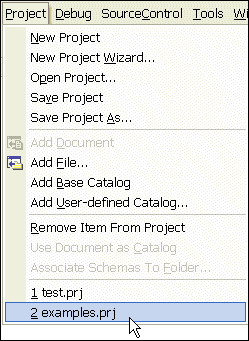
Projects that were recently opened are displayed at the bottom of the
Project drop-down menu. Click the project you want to open.
|
|
Figure 84. Recently Opened Projects Are Listed on the Project Menu

 Cart
Cart