Home >
Online Product Documentation >
Table of Contents >
Using the File Explorer
Using the File Explorer
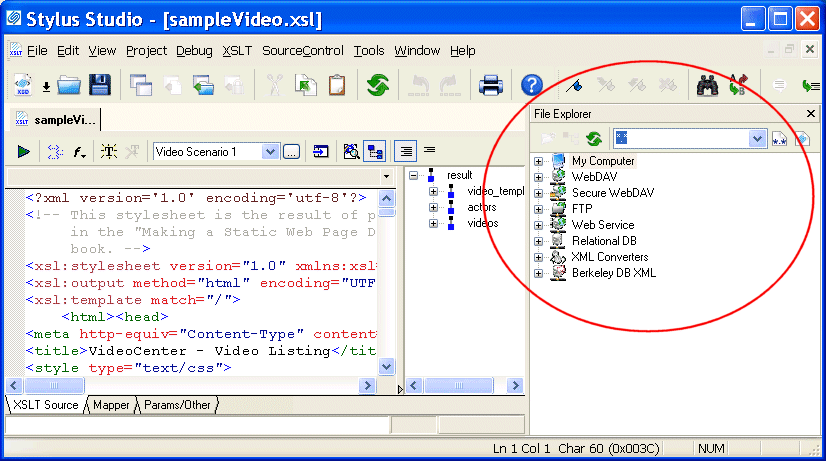
The Stylus Studio File Explorer is a dockable window that provides easy access to any file system accessible from the computer on which you are running Stylus Studio. You can use the File Explorer to quickly add files to Stylus Studio and open files in Stylus Studio, as well as to perform typical file management tasks (like renaming and deleting files, for example).
|
|
Figure 77. Stylus Studio File Explorer
By default, the
File Explorer window appears on the right side of the Stylus Studio window, but you can drag it anywhere on your desktop. You can close/open the File
Explorer window from the
View menu.
How to Use the File Explorer to Open Files
There are several ways to open files using the File Explorer:
|
Tip
|
|
Open With allows you to select the module you want to use to open the file.
|
When you open a file by double-clicking or using the
Open shortcut menu, Stylus Studio opens the file in the module associated with the file type (the XML Editor for
.xml files, for example). If the file type is not currently registered with Stylus Studio, you can register the file at this time using the
Choose Module for dialog box. See
Types of Files Recognized by Stylus Studio for more information about file type/module associations in Stylus Studio.
Other Features of the File Explorer
The tool bar in the
File Explorer window has several features that can help you navigate the file systems associated with your computer and work with individual documents.
|
|
Figure 78. File Explorer Tool Bar
These features are summarized in the following table.
|
Tool
|
Description
|

New Folder
|
Creates a new folder as a child of the folder with current focus. The default folder name is New Folder.
|

Read Document Structure
|
Displays the structure of XML documents in tree form. You can drag exposed nodes onto the document tab area to open the document associated with that node. If you drag a node into an existing XQuery or XSLT document, Stylus Studio creates the document function with the XPath expression for that node. For example, if you drag the
title element from
books.xml into an XQuery document, Stylus Studio builds the following function:
doc("file:///c:/Program Files/Stylus Studio 2008 XML Enterprise Suite/examples/simpleMappings/

books.xml")/books/book/title
|

Refresh
|
Refreshes the
File Explorer window.
|

Reset Filters
|
Resets the File Explorer filter from its current content to the wildcard (*.*).
|

Stylus File Types
|
Changes the File Explorer filter to display only file types associated with Stylus Studio: .xml, .xsd, .dtd, .java, .conv, and others.
|
Table 3. File Explorer Tools
Working with the File Explorer Filter
By default, the
File Explorer window uses a wildcard filter to display all file types (*.*).
|
|
Figure 79. File Explorer Filter
You can
- Type your own filter (
*.txt, for example). If you want to use multiple filters, separate them with a semicolon (
*.txt; *.html, for example).
- Use the
Stylus File Types
button to change the filter to display only file types associated with Stylus Studio (
.xml,
.xsd,
.dtd,
.java,
.conv, and others)
Stylus Studio remembers the filters you create and adds them to the drop-down list.
 Cart
Cart