Cart
Cart
|
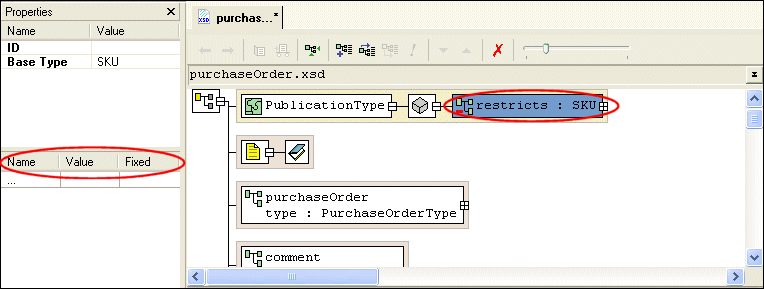
Home > Online Product Documentation > Table of Contents > Redefining Nodes Redefining NodesOnce you reference an XML Schema by redefining it, you are able to redefine that XML Schema's complexTypes, simpleTypes, groups, and attributeGroups. This section describes how to redefine nodes using the Diagram tab. Extensions and RestrictionsThere are two ways to redefine a node: by extension and restriction. An extension extends the base type - adding an element or an attribute definition, for example. A restriction constrains the base type - limiting a type to a certain range of values, for example. Specifying Restriction FacetsIf you define a restriction using a simpleType, the Properties window displays a section that allows you to define the facets that restrict that type, as shown in Figure 275.
Restriction facets include
See About Facet Types for simpleTypes for more information on facets. How to Redefine a NodeTo redefine a node in the Diagram view:
1. Right-click the
schema node
 .
.
2. Select
Redefine from the shortcut menu.
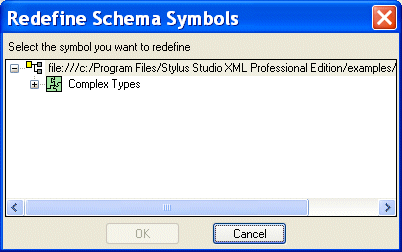
The Redefine Schema Symbols dialog box appears.
3. Select the node from the redefined XML Schema you want to redefine and click
OK.
The redefined node is added to the diagram, and the text for the redefined node appears in the text pane. For example,
4. Right-click the redefined node.
5. From the shortcut menu, select
Quick Edit > and then either
Derive by extension or
Derive by restriction.
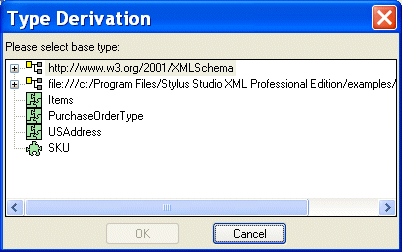
The Type Derivation dialog box appears.
6. Select the base type from which you want to derive the definition of the node you are redefining. and click
OK.
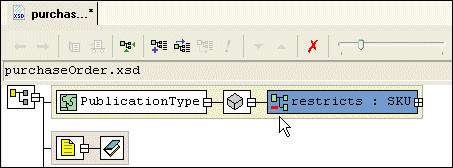
The node you added in Figure 3 is modified in the diagram to display the restriction or extension you are using to redefine it, as shown in Figure 278.
The code displayed in the text pane is also modified. For example:
7. If you specified a restriction of a simpleType, specify the restriction facets in the
Properties window. See
Specifying Restriction Facets if you need help with this step.
|

XML PRODUCTIVITY THROUGH INNOVATION ™