Cart
Cart
|
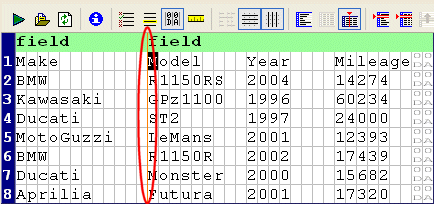
Home > Online Product Documentation > Table of Contents > Defining Fields Defining FieldsYou can define fields in any region in a fixed-width input file, as shown in Figure 176. Once you have defined a field, you can change its size by simply dragging it to any column in the grid.
Each field you define is treated as a separate element in the XML output by the custom XML conversion definition. The input file shown in
Figure 176, for example, would result in XML with two
Consider the following input file:
By default, each row is considered to have a single field, containing
If you specify fields for
Neither approach is always correct, but this feature gives you the ability to define the type of XML output that is appropriate for your use.
To define a field:
1. Place the cursor in the document pane on the character with which you want to start the new field.
2. Click the
Begin Field in This Column (
 ) button. This action is also accessible from the
CustomXMLConversion menu and the shortcut menu in the Custom XML Conversions Editor.
) button. This action is also accessible from the
CustomXMLConversion menu and the shortcut menu in the Custom XML Conversions Editor.
Stylus Studio displays a thin orange line that identifies the start of the newly defined field. To remove a field:
The procedure for removing a field is the same as the procedure for defining one - place the cursor on any character adjacent to the field line you want to remove and click the
Begin Field in This Column (
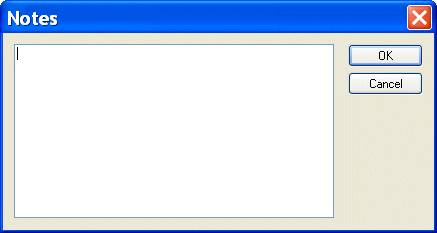
Creating Notes for FieldsStylus Studio allows you to create notes on individual fields. These notes are for reference purposes only; they are not output in the XML. To create notes for a field:
1. Click the entry field for the
Notes property.
The Notes dialog box appears.
2. Type the notes you want to associate with the field and click the
OK button.
|

XML PRODUCTIVITY THROUGH INNOVATION ™