Cart
Cart
|
Home > Online Product Documentation > Table of Contents > Viewing Templates Viewing TemplatesStylus Studio provides different ways to display lists of templates, specific templates, as well as ways to see if a given template generates any output. Viewing a List of TemplatesTo view a list of the templates in the stylesheet
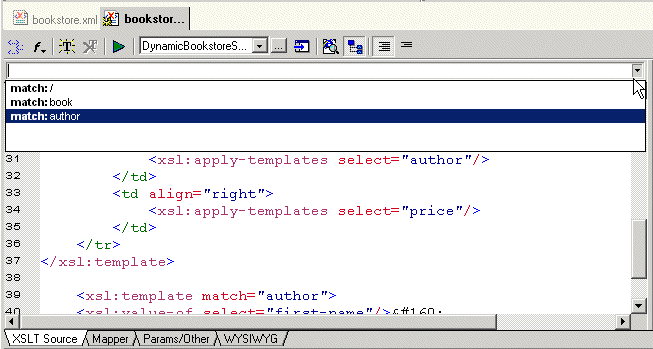
1. Click the down arrow in the upper right corner of the XSLT editing pane.
Stylus Studio displays a drop-down list of the first five match patterns in the stylesheet. To limit the displayed list, type in the combo box to the left of the down arrow. Stylus Studio displays only those patterns that match the character(s) you typed.
2. Click the match pattern for the template you want to view. It does not matter whether the XSLT editor is in
Full Source
 mode or
Template
mode or
Template
 mode.
mode.
Viewing a Specific TemplateTo view a particular template, double-click its matching element in the XML tree view, which is displayed to the right of the editing pane. If the element has more than one template, Stylus Studio displays a list of the templates. Click the one you want. Checking if a Template Generates OutputTo see if a particular template generates any output:
1. Select a template in the XSLT templates pane.
2. Click
Refresh
 to apply the stylesheet.
3. In the
XSLT Preview window, with output text displayed, scroll as necessary to find text highlighted in gray. Text with a gray background was generated by the selected template.
|

XML PRODUCTIVITY THROUGH INNOVATION ™