Cart
Cart|
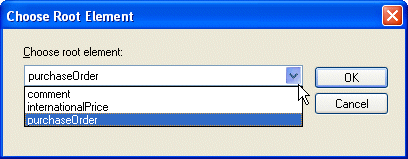
Home > Online Product Documentation > Table of Contents > Using XML Schema or DTD as a Data Source Using XML Schema or DTD as a Data SourceIf you use XML Schema or DTD documents as sources for XML Publisher reports, you need to This section describes how to perform these procedures. Choosing a Root ElementWhen you add an XML Schema or a DTD to the data sources panel, Stylus Studio displays the Choose Root Element dialog box, shown in Figure 445.
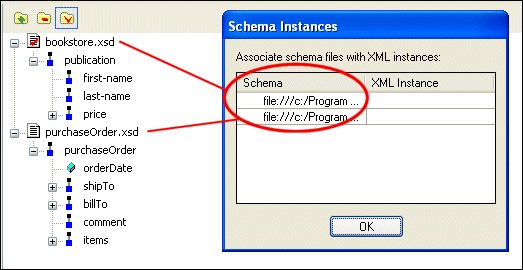
The Choose root element drop-down list displays all the child elements of the XML Schema or DTD document you selected as a data souce. Select the element you want to use as the document root and click OK. Associating an XML Instance with the SchemaBefore you can preview or generate code for an XML Publisher report, you need to associate an XML document, referred to as an XML instance, with any XML Schema or DTD documents you are using as source documents. When you click the Preview or Generate buttons on the XML Publisher toolbar, if you have not already associated an XML instance with the schema you are using as data sources, Stylus Studio displays the Schema Instances dialog box, shown in Figure 445.
Each entry in the Schema field represents an XML Schema or DTD document used as a data source. To associate it with an XML instance:
1. Click the
XML Instance field.
Stylus Studio displays the Open dialog box.
2. Choose the XML document you want to use as the XML instance and click the
Open button.
The Open dialog box closes; the URL for the file you selected appears in the XML Instance field.
3. Click
OK.
Stylus Studio previews the XML Publisher report, or begins the code generation process. |

XML PRODUCTIVITY THROUGH INNOVATION ™