Cart
Cart
|
Home > Online Product Documentation > Table of Contents > Adding Conditional Processing in the HTML Editor Adding Conditional Processing in the HTML EditorConditional processing can be on a single item, a repeating item or a row.
You can then specify whether you want to insert an
Only one branch of a conditional instruction can be active at any one time. Consequently, the HTML canvas might haze or hide glyphs and placeholders. If you want to operate on a placeholder that is not visible, you must change the active branch.
When you specify conditional processing on a table row, a marker (
This section covers the following topics: Specifying Choose Conditional Processing in the HTML Editor
At any point in time only one branch of an
Use the
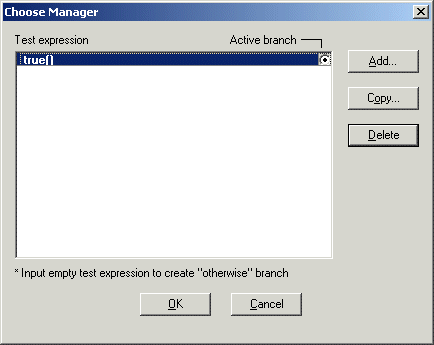
Choose Manager to define the test conditions in the
Choose ManagerTo specify xsl:choose processing:
1. Right click on the placeholder for which you want to define the
xsl:choose instruction.
2. In the shortcut menu that appears, select
Conditional Processing
>
Add Choose. Stylus Studio displays the
Choose Manager dialog box.
3. Click
Copy to define a test condition, which must be an XPath expression. You can define as many conditions as you need. Each condition you add corresponds to an
xsl:when instruction.
4. If you do not need it, select the
true() condition and delete it.
5. To specify an
xsl:otherwise instruction, add a condition and leave it blank.
6. Click
OK.
Stylus Studio creates an
Change active branchTo change the active branch:
1. In the HTML canvas, click a
choose glyph for the active branch you want to change.
Stylus Studio displays the properties for the
2. In the
Properties window, click the
when field.
3. Click the down arrow to display the drop-down menu.
4. Click the branch you want to be active.
For a new
Specifying If Conditional Processing in the HTML EditorTo specify xsl:if conditional processing:
1. Select the placeholder for which you want to define the
xsl:if instruction.
2. In the pop-up menu that appears, select
Conditional Processing
>
Add If. Stylus Studio displays the
Input dialog box.
3. In the
Test Condition field, specify an XPath expression. Stylus Studio evaluates it in the context of the placeholder to which you are adding the
xsl:if instruction.
4. Click
OK.
You can specify multiple
|

XML PRODUCTIVITY THROUGH INNOVATION ™
 ) appears to the left of the table row. You can move the cursor over the marker to display a message that indicates the active branch. Click the marker to display the properties for the active conditional branch associated with the marker your clicked.