Cart
Cart
|
Home > Online Product Documentation > Table of Contents > Validating Result Documents Validating Result DocumentsYou can optionally validate the XML document that results from XSLT processing. You can validate using the
All validation is done before any post-processing that you might have specified. To validate XSLT scenario result documents:
1. Open the stylesheet whose results you want to validate.
2. In the XSLT Editor (
XSLT Source or
Mapper tabs), in the scenario name field, click the down arrow and click the name of the scenario for which you want to perform validation.
3. Click
Browse
 to open the
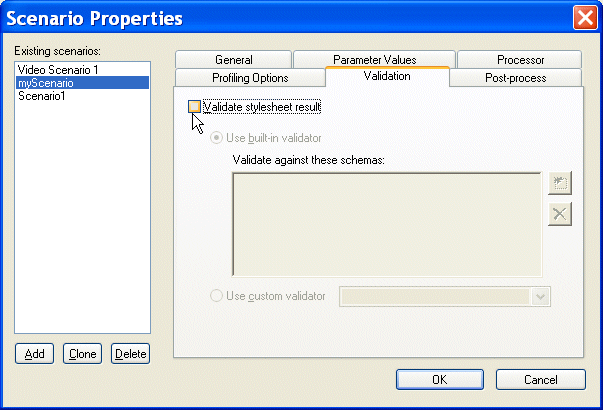
Scenario Properties dialog box.
to open the
Scenario Properties dialog box.
4. Click the
Validation tab.
5. Click
Validate stylesheet result.
6. If you are using Stylus Studio's built-in validation engine, optionally, specify the XML Schemas against which you want to validate the XML result document. Otherwise, go to
step 7
a. Click the Open file button (
 ).
).
The Open dialog box appears.
b. Select the XML Schema you want to use for validation.
c. Click the
Open button to add the XML Schema to the
Validation tab.
d. Optionally, add other XML Schemas.
e. Go to
step 8.
7. Click the
Use custom validator button, and select the validation engine you want to use from the drop-down list box.
8. Click
OK.
|

XML PRODUCTIVITY THROUGH INNOVATION ™