Cart
Cart
|
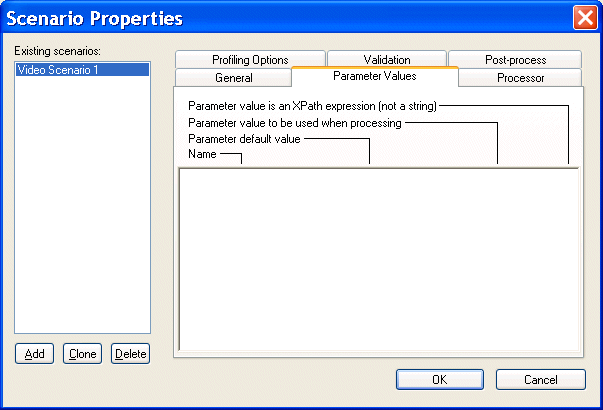
Home > Online Product Documentation > Table of Contents > Specifying Stylesheet Parameters and Options Specifying Stylesheet Parameters and OptionsYou can specify values for stylesheet parameters in the Parameter Values tab of the Scenario Properties dialog box. To specify XSLT stylesheet parameters:
1. Open the stylesheet for which you want to specify parameter values.
2. In the XSLT editor tool bar, click
Browse
 .
.
Stylus Studio displays the Scenario Properties dialog box.
3. Click the
Parameter Values tab.
Stylus Studio displays a list of the parameters defined in your stylesheet, if any, with any default values.
4. Click the third field in the line that displays the parameter for which you want to define a value -
Parameter value to be used when processing.
5. Type the value of the parameter.
6. If you want Stylus Studio to pass this paramater as an XPath expression instead of as a string, click the fourth field, which is a check box.
The default is that Stylus Studio passes a parameter as a string.
7. Click
OK.
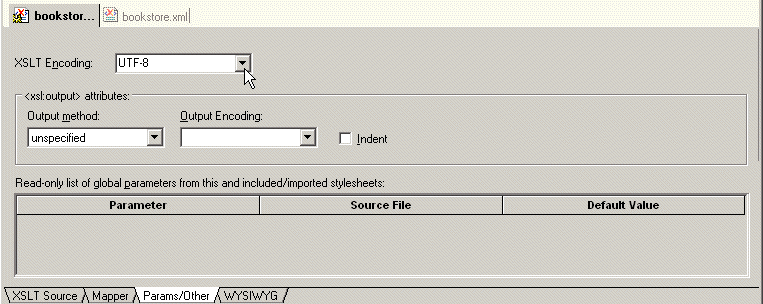
To view stylesheet parameters and and specify stylesheet options, click the Params/Other tab in the stylesheet window.In the XSLT Encoding field, you can specify the encoding you want Stylus Studio to use when you save the stylesheet.
To display a list of the encodings supported by Stylus Studio, click the down arrow in the XSLT Encoding field. In the Output method field, you can specify the type of data you want the stylesheet to generate. Choices include
If you do not specify an
When the result of applying a stylesheet is XHTML, specify
In the Params/Other tab, in the Output Encoding field, you can specify the encoding you want Stylus Studio to use in the document that is the result of applying the stylesheet. When you apply a stylesheet, Stylus Studio uses this encoding for the output document. You can change the encoding by changing the setting in the Params/Other tab or in the initial processing instruction in the stylesheet. When you change the setting in one of these places, Stylus Studio automatically changes it in the other. They are always the same. In the Output Encoding field, click the down arrow to display a list of the supported encodings. If you want Stylus Studio to insert indents in the result document, select Indent. |

XML PRODUCTIVITY THROUGH INNOVATION ™