Cart
Cart|
Home > Online Product Documentation > Table of Contents > Compiling Generated Code Compiling Generated CodeIn order to compile the Java code generated for XQuery, you need to make sure that the following JAR files are in the Stylus Studio classpath:
These files are in in the
How to Modify the Stylus Studio ClasspathTo modify the Stylus Studio classpath:
1. Select
Tool > Options from the Stylus Studio menu.
2. Click
Java Virtual Machine under
General.
3. Click the browse button alongside the
Classpath field.
The Add Directory or JAR File to Classpath dialog box appears.
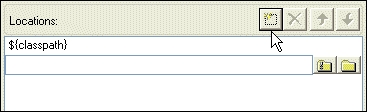
4. Click the browse folders (
 ) button.
A new entry field appears in the Locations list box. Two buttons appear to the right of the entry field.
5. Click the browse jar files button (
 ).
).
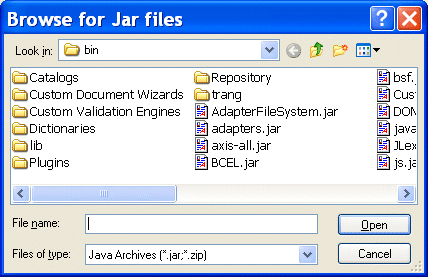
Stylus Studio displays the Browse for JAR Files dialog box.
6. Navigate to the Stylus Studio
\bin directory, select the
CustomFileSystem.jar file, then click
Open.
7. Repeat
step 6, this time selecting the
Saxon8.jar file.
8. Click
OK to close the
Add Directory or JAR File to Classpath dialog box.
How to Compile and Run Java Code in Stylus StudioTo compile Java code in Stylus Studio:
1. Make sure the Java Editor is the active window.
2. Click the
Compile button (
 ).
).
Alternatives: Press Ctrl + F7, or select Java > Compile from the Stylus Studio menu. Stylus Studio compiles the Java code. Results are displayed in the Output window. To run Java code in Stylus Studio:
1. Make sure the Java Editor is the active window.
2. Click the
Run button (
 ).
).
Alternatives: Press Ctrl + F5, or select Java > Run from the Stylus Studio menu. If the code has not been compiled, Stylus Studio displays a prompt asking if you want to compile the code now. Otherwise, Stylus Studio runs the Java code. Results are displayed in the Output window. |

XML PRODUCTIVITY THROUGH INNOVATION ™