 Cart
Cart|
Home > Online Product Documentation > Table of Contents > The DB-to-XML Data Source Editor The DB-to-XML Data Source EditorYou use the DB-to-XML Data Source Editor to specify database connectivity settings, and to compose the SQL/XML (queries and other actions) that you want to execute on the server.
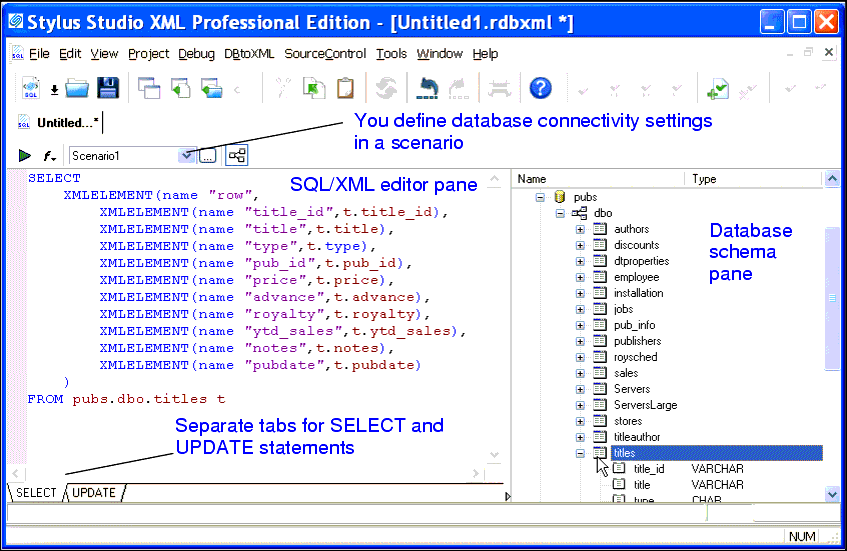
SQL/XML Editor PaneThe SQL/XML editor pane is on the left side of the DB-to-XML Data Source Editor. It consists of two tabs, SELECT and UPDATE, which you use to compose SQL/XML SELECT and, optionally, UPDATE and INSERT statements. You can type directly in the editor, or you can use drag-and-drop to automatically compose SQL/XML statements. See Composing SQL/XML in Stylus Studio to learn more about using the SQL/XML editor. Database Schema PaneThe database schema pane is on the right side of the DB-to-XML Data Source Editor. Once you have established a connection to the database specified in the scenario, Stylus Studio displays a tree diagram of the database schema pane.
The database schema tree is displayed by default. You can hide it by clicking the
Show/Hide Database Schema button (
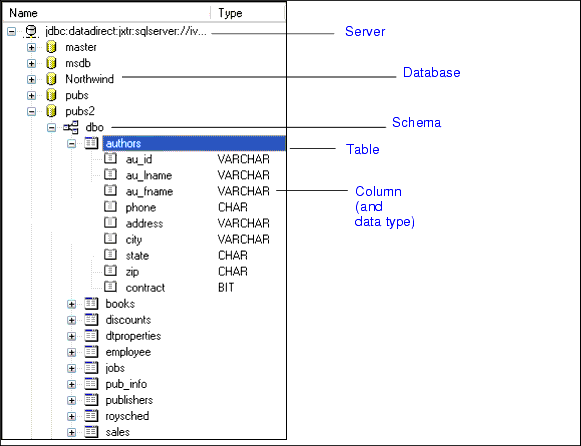
Information in the schema tree is displayed in a hierarchical fashion, starting with the server you specified in the connection settings. Tables, views, and columns are displayed in database order; column data types are displayed in the Type column. Working with Relational DataAll SQL/XML statements are defined on the SELECT and UPDATE tabs. Stylus Studio can automatically create valid SELECT, INSERT, and UPDATE SQL/XML statements based on the objects you select from the database schema tree, or you can type your own SQL/XML. The actions that can be performed by the SQL/XML you define in your DB-to-XML data source are limited only by the permissions associated with the username you use to log in to the database. See Composing SQL/XML in Stylus Studio for more information on this topic. |

XML PRODUCTIVITY THROUGH INNOVATION ™
 ), or by selecting
DB-to-XML > Database Schema from the menu.
), or by selecting
DB-to-XML > Database Schema from the menu.


