Cart
Cart|
Home > Online Product Documentation > Table of Contents > How to Open a Table or View as an XML Document How to Open a Table or View as an XML DocumentTo open a table or view as an XML document:
1. Display the
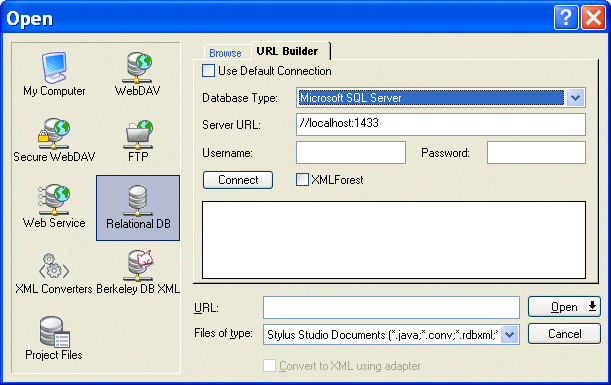
Open dialog box.
2. Click the Relational DB icon.
Two new tabs appear: Browse and URL Builder.
3. Click the
URL Builder tab.
4. Complete the connection settings as described in
Specifying Connection Settings.
5. Click the
Connect button.
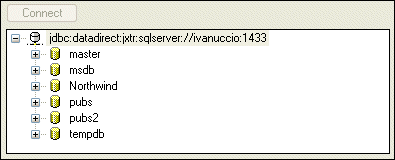
The databases for the server you connected to appear in the URL Builder tab. For example:
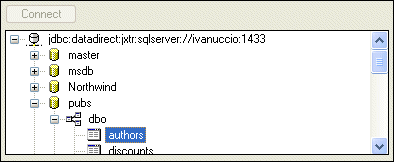
6. Expand the tree diagram to locate the table or view you want to open as an XML document. For example:
7. Click the
Open button.
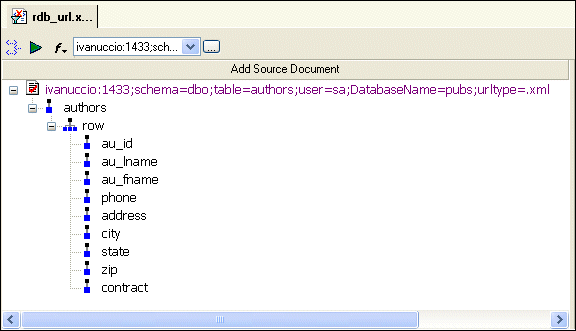
Stylus Studio opens the table or view as an XML document in the editor you were using when you displayed the
Open dialog box. in this example, the
Notice that the document name contains the connection settings used to define the URL in step 4. |

XML PRODUCTIVITY THROUGH INNOVATION ™