Home >
Online Product Documentation >
Table of Contents >
Properties Window
Properties Window
The
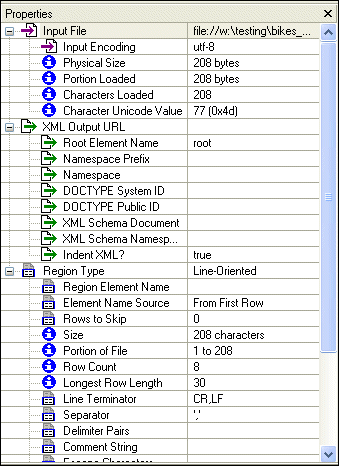
Properties window, like the one shown in
Figure 174, displays information about the input file, as well as settings that Stylus Studio will use convert files to XML.
|
|
Figure 174. Properties Window for a .txt File
Information in the
Properties window includes
- Information read or inferred from the input file when it is first opened in the Convert to XML Editor. Examples include the file name, file size, and number of characters that were read. Some values, such as the type of encoding, can be edited. Informational fields that cannot be edited are identified with a blue circle:
 .
.
- Values you want the Convert to XML converter to use when converting this input file and other files of this type to XML. Output properties include the root element name, the namespace and namespace prefix, and the field element name. These fields are identified with a green arrow over a document icon:
 .
.
How Properties are Organized
Properties displayed in the
Properties window are organized in the following categories:
-
Input File - read-only information read or inferred from the input file, and editable properties that affect XML output. These properties affect the file as a whole when it is converted to XML. Input file properties are identified by this icon:
 .
.
-
XML Output URL - properties that affect the XML document created by the Convert to XML converter, including the name you want to use for the root element, and whether or not you want to indent the XML. Output URL properties are identified by this icon:
.
-
Region Type - read only information inferred from the input file, and editable properties that affect XML output. Examples include line terminating and escape characters. These properties affect a contiguous portion of the file (that is, a given line-oriented or fixed-width region) when it is converted to XML. Region properties are identified by this icon:
 .
.
-
Row Element Name - properties that affect which rows of the input file are output to XML and how they are output, including the name you want to use for the row. Row properties are identified with this icon:
 .
.
-
Field Element Name - read-only information read or inferred from the input file, and editable properties that affect XML output. These properties affect only fields in a given region of the file when it is converted to XML. Field properties are identified by this icon:
 .
.
|
Note
|
|
Informational properties, that is, properties that do not affect XML output, are displayed with the following icon:
. These properties are displayed when you click the
Toggle Informational Properties button.
|
Properties for Fixed-Width and Line-Oriented Input Files
Fixed-width and line-oriented input files have different properties - line-oriented properties include the line terminator and field separator characters, and fixed-width files have a row length, for example. See
User-Defined Adapter Properties Reference to learn more about individual properties.
 Cart
Cart