Cart
Cart
|
Home > Online Product Documentation > Table of Contents > Document Pane Document PaneThe document pane displays the input file's layout, including spaces, field separators, and control characters. The input file's appearance in the document pane is determined, in part, by its format. This section covers the following topics: Example - .txt Files
Stylus Studio uses slightly different displays for character-separated and fixed-width
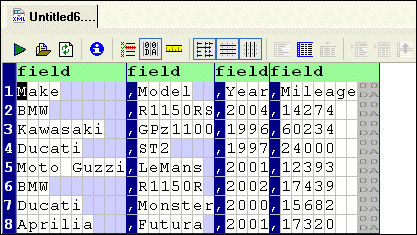
Figure 165 shows how this character-separated input file appears in the Convert to XML Editor's document pane. By default, Stylus Studio aligns columns and fills the empty cells of the shorter rows with a light blue to aid readability:
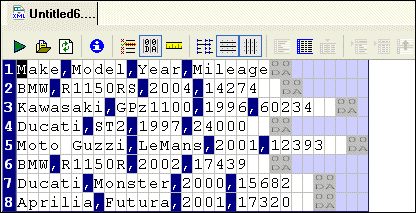
You can remove these spaces from the display and view the file in its native format by clicking the
Align Fields button (
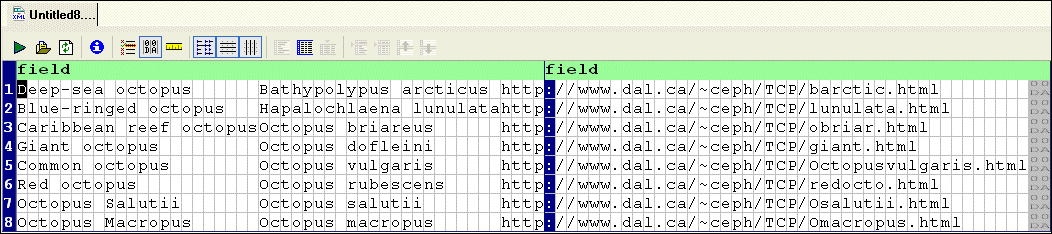
Fixed-width files are displayed in a slightly different fashion. Consider this fixed-width input file:
In a fixed-width file, the empty cells represent actual values (spaces) in the input file. In the second row of this input file, for example, there are three spaces between the first and second columns:
Display of Delimiting and Control CharactersStylus Studio displays delimiting and control characters in a way that distinguishes them from plain text values.
Stylus Studio understands all Unicode characters,. When editing Line-Oriented Region and Field Name values in the Properties window, you can enter mnemonic values for the C1 and C0 control characters in the following ranges:
For example, you could enter
You can hide control characters by clicking the
Toggle Control Characters button (
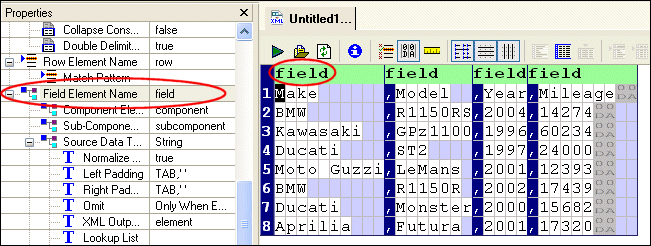
Field NamesUser-defined field names - values that Stylus Studio uses to create the element names in converted XML - are displayed in green, as shown here:
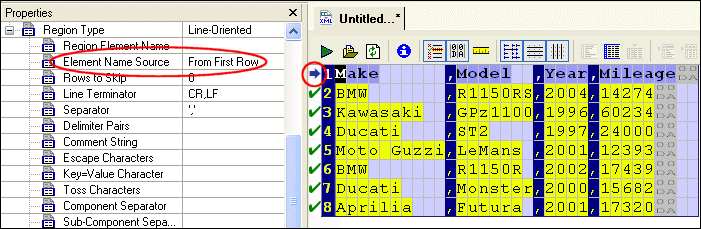
You can edit these names If the field names are taken from a row within the file itself, Stylus Studio displays a blue arrow in the document pane margin to indicate this.
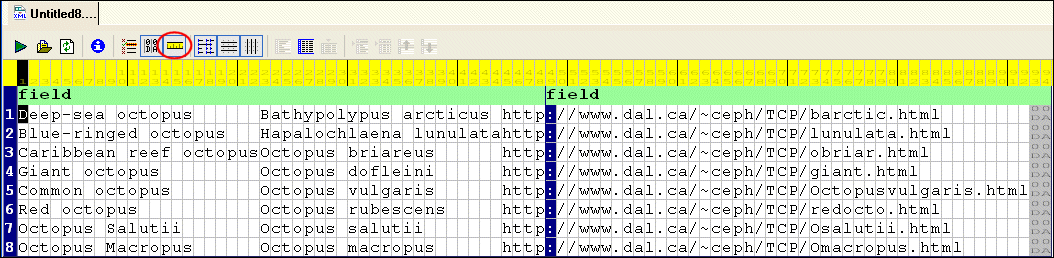
See Naming Fields to learn more about naming fields for XML output by Convert to XML converters. Document Pane Display FeaturesIn addition to aligning fields in character-delimited files, the Convert to XML Editor's document pane has several other features that aid readability. RulerYou can display a ruler that identifies each column:
To display the ruler, click the
Toggle Ruler button (
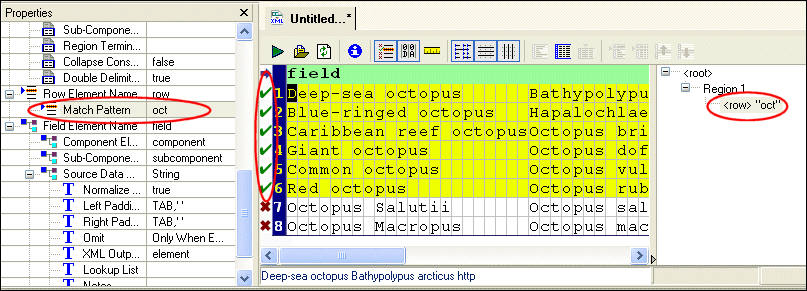
Displaying Pattern MatchesYou can define match patterns using regular expressions to control which rows are converted to XML and, optionally, the name to use for these rows. You can highlight rows that match the patterns that you have defined, as shown here:
To highlight matching rows, click the
Highlight Matching Rows button (
Matching rows are displayed in a light yellow, with a green check in the pane's margin. A red X identifies rows that do not match the pattern. Gray squares identify rows that match a pattern other than the pattern defined for the row that currently has focus. See Specifying Multiple Match Patterns for more information on this feature.
See Pattern Matching to learn more about using regular expressions to define match patterns. Grid LinesThe document pane displays both vertical and horizontal lines by default; you can hide/show them independently. In the example shown in Figure 172, horizontal lines are hidden from the display:
To hide horizontal and vertical grid lines, click the
Toggle Horizontal Grid Lines (
FontsBy default, the input document is displayed using the Courier New font in 12pt. You can change the display font to suit your personal preference using the Edit > Change Font and Edit > Font Size menus. Moving Around the DocumentYou can move the cursor around the document
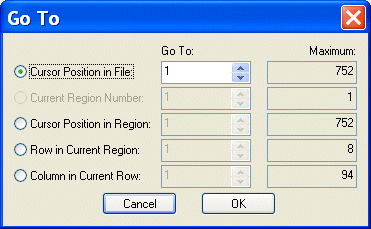
Using Go ToYou use the Go To dialog box to jump to a specific location in the file you are using to create your converter. You can use it to move the cursor to a specific When you first display the Go To dialog box, values in the Go To fields reflect the cursor's current location within the file. The values in the Maximum fields display the maximum values for each category (file size, number of regions, and so on) for the portion of the file read into the Convert to XML Editor by Stylus Studio. To display the Go To dialog box, select Edit > Go To from the menu. |

XML PRODUCTIVITY THROUGH INNOVATION ™
 ) on the tool bar, or by selecting
Convert to XML > Align Fields on the menu. This results in the layout shown in
) on the tool bar, or by selecting
Convert to XML > Align Fields on the menu. This results in the layout shown in
 , for example. ASCII abbreviations are aligned vertically, to preserve space, as shown in this representation of the ASCII value for tab (0x09):
 .
.
 ) on the tool bar, or by selecting
ConvertToXML > Toggle Control Characters from the menu.
) on the tool bar, or by selecting
ConvertToXML > Toggle Control Characters from the menu.
 ) on the tool bar, or select
ConvertToXML > Toggle Ruler from the menu.
) on the tool bar, or select
ConvertToXML > Toggle Ruler from the menu.
 ) on the tool bar, or select
ConvertToXML > Highlight Matching Rows from the menu.
) on the tool bar, or select
ConvertToXML > Highlight Matching Rows from the menu.
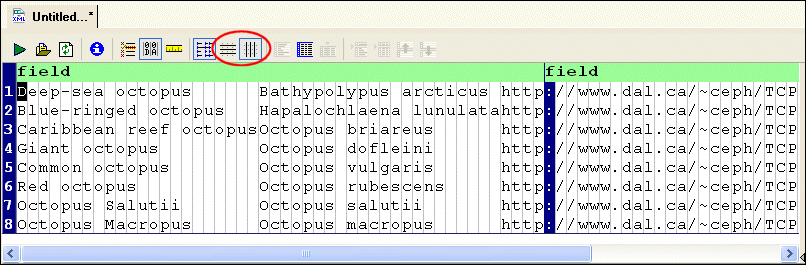
 ) and/or
Toggle Vertical Grid Lines (
) and/or
Toggle Vertical Grid Lines (
 ) buttons on the tool bar, or select
ConvertToXML > Toggle Horizontal Grid Lines and/or
Toggle Vertical Grid Lines from the menu.
) buttons on the tool bar, or select
ConvertToXML > Toggle Horizontal Grid Lines and/or
Toggle Vertical Grid Lines from the menu.