Cart
Cart
|
Home > Online Product Documentation > Table of Contents > Creating a Template That Matches the author Element Creating a Template That Matches the author ElementThis topic is part of a sequence that starts with Creating a New Sample Stylesheet. To define a template that matches the author element:
1. In the XSLT editor source document tree pane, expand the
book element.
2. Double-click the
author element.
Stylus Studio creates a template that matches the
3. In the XSLT editor pane view, edit the template body so that it contains only the following contents.
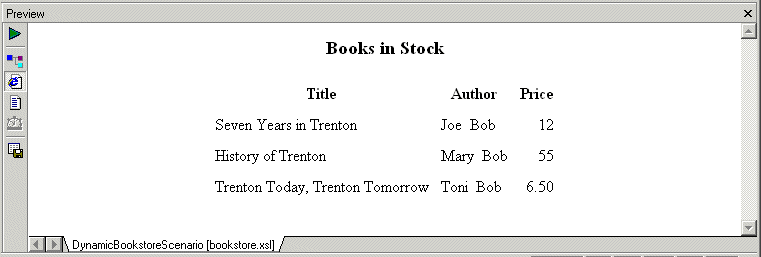
If you do not include the nonbreaking space entity, the first name and the last name have no space between them. Press F5 to see the results of this change, as shown in Figure 170.
4. Save the stylesheet by clicking
Save
 .
.
5. Close the stylesheet by clicking
File > Close on the Stylus Studio menu bar.
|

XML PRODUCTIVITY THROUGH INNOVATION ™