Cart
Cart
|
Home > Online Product Documentation > Table of Contents > Creating a New Toolbar Creating a New ToolbarYou can create your own toolbars, adding to them the buttons for the tools that you desire. To create a toolbar:
1. Display the
Customize dialog box (
Tools > Customize).
2. Click the
New button.
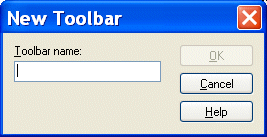
Stylus Studio displays the New Toolbar dialog box.
3. Enter a name for the toolbar in the
Toolbar Name field and click the
OK button.
Stylus Studio creates a new toolbar window.
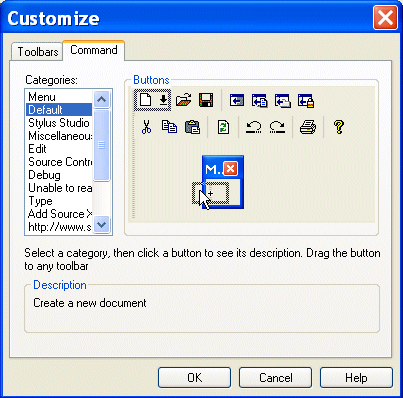
4. Click the
Command tab in the
Customize dialog box.
5. Select the toolbar group whose tools you wish to add to your new toolbar.
6. Drag the toolbar button from the existing toolbar to the new toolbar window.
8. When you are done, drag the new toolbar window to the Stylus Studio toolbar.
|

XML PRODUCTIVITY THROUGH INNOVATION ™