Cart
Cart
|
Home > Online Product Documentation > Table of Contents > Adding and Removing Buttons Adding and Removing ButtonsTo add a button to a tool bar:
1. Display the
Customize dialog box (
Tools > Customize).
2. Click the
Command tab.
3. In the
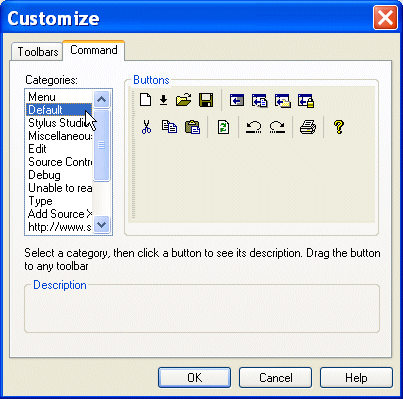
Categories field, click the group of buttons you want to rearrange (such as the
Default group shown in
Figure 94).
Stylus Studio displays the buttons in that group in the Buttons group box.
4. Drag the button from the
Buttons group box to the target location on the Stylus Studio toolbar.
5. Click a new category to rearrange buttons in that category, and click
OK.
To remove a button from a toolbar, drag it off the toolbar. |

XML PRODUCTIVITY THROUGH INNOVATION ™