Home >
Online Product Documentation >
Table of Contents >
Modifying Default Diff Settings
Modifying Default Diff Settings
Default settings for the behavior of the Diff engine and the appearance of diffed documents and folders are on the
Engine and
Presentation pages, respectively, of the
Options dialog box. The
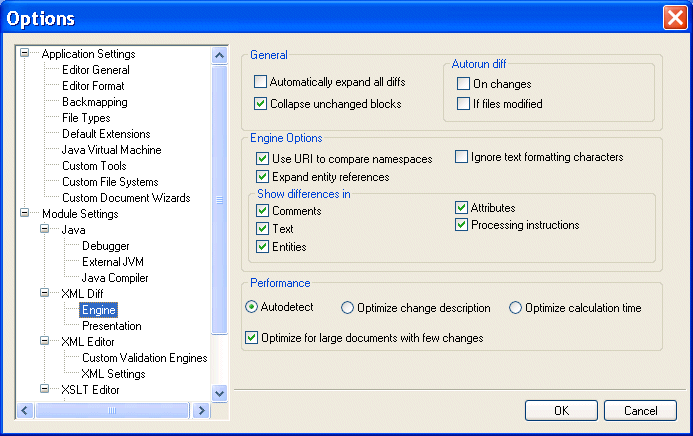
Engine page, shown here, has settings that determine the conditions under which Stylus Studio runs the diff automatically, which items in a document (comments and text, for example) you want the diff engine to ignore, and settings that allow you to choose diffing algorithm tunings optimized for change description or time, for example.
|
|
Figure 137. Engine Options Page for XML Diff
Settings on the
Engine page are reflected in the Diff editor tool bar, and in the
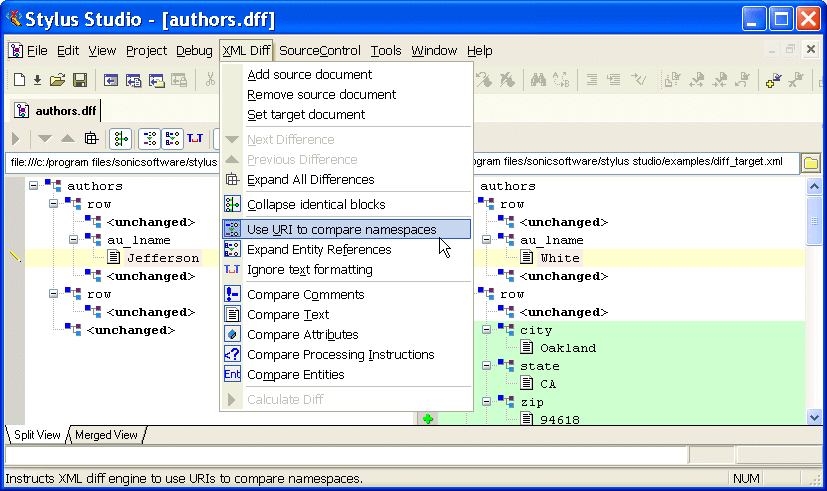
XML Diff menu, shown here.
|
|
Figure 138. XML Diff Menu
|
Tip
|
|
You can override
Engine page settings using the Diff editor tool bar or the
XML Diff menu. Overrides do not change the settings on the
Engine page.
|
This section covers the following topics:
Opening the Options Dialog Box
To open the Options dialog box:
1. Click
Tools > Options on the Stylus Studio menu.
The
Options dialog box appears.
2. If necessary, expand the tree for
Module Settings > XML Diff.
3. Click the page that contains the settings you want to modify.
4. To save a changed setting, click
OK. Click
Cancel to revert to close the dialog box and revert to the previous settings.
Engine Settings
This section describes the settings that affect the behavior and performance of the Diff engine.
General
The fields in the
General group box affect the initial display of diffed documents and the conditions, if any, under which Stylus Studio runs the diff automatically.
-
Automatically expand all diffs - By default, Stylus Studio collapses the display of the diffed documents. If you select this option, all nodes containing diffs are expanded when the diff is run.
-
Collapse unchanged blocks - By default, Stylus Studio collapses any block that does not contain any changes to save space in the XML Diff Viewer window. These blocks are displayed as <unchanged> in the document tree. You might prefer to have the entire document structure visible, to provide context for changed nodes, for example.
-
Autorun diff - By default, Stylus Studio runs the diff operation if you make a change to one of the settings on the
Engine page of the
Options dialog box. You can also specify that Stylus Studio run the diff operation when the source or target documents change. If you select
If files modified, Stylus Studio runs the diff operation when you save a source or target file. If neither of these options is selected, you must run the diff manually. See
When Does the Diff Run? for more information on this topic.
Engine Options
The fields in the
Engine Options group box affect how Stylus Studio diffs source and target documents.
-
Use URI to compare namespaces - Controls whether or not URIs are used to compare namespaces in source and target documents.
-
Expand entity references - Controls whether or not entity references, which in some cases can include files external to the source or target document, are expanded by the Stylus Studio diff engine for purposes of comparing one block with another.
-
Ignore text formatting characters - Controls whether or not text formatting characters (new line, carriage return, and tab) are ignored when comparing source and target documents. This option is off by default.
-
Show differences in - Provides granular control of what items in XML documents are diffed. There are separate settings for comments, text, entities, attributes, and processing instructions.
Performance
Diffing large, numerous, or complex documents can be time-consuming. Stylus Studio provides controls that let you choose algorithm tunings that have been optimized for change description or calculation time.
-
Autodetect - Stylus Studio determines which algorithm tuning to use based on the number, content, complexity, and size of the source and target documents. Stylus Studio first tries to use the tuning that is optimized for change description; if it determines that processing resources are limited, it reverts to the algorithm tuning optimized for speed. This setting is on by default.
-
Optimize change description - Provides the most economical set of changes possible. This calculation, though it yields the best results, can be costly in terms of time and processing resources.
-
Optimize calculation time - Provides the set of changes in the shortest time possible.
-
Optimize for large documents with few changes - Helps speed the diffing of large (greater than 1MB) documents. This setting can be used in conjunction with any of the algorithm tuning settings and is on by default.
|
Tip
|
|
The default setting,
Autodetect and
Optimize for large documents
with few changes, yields the best results when time and processing resources are not considerations.
|
Presentation Options
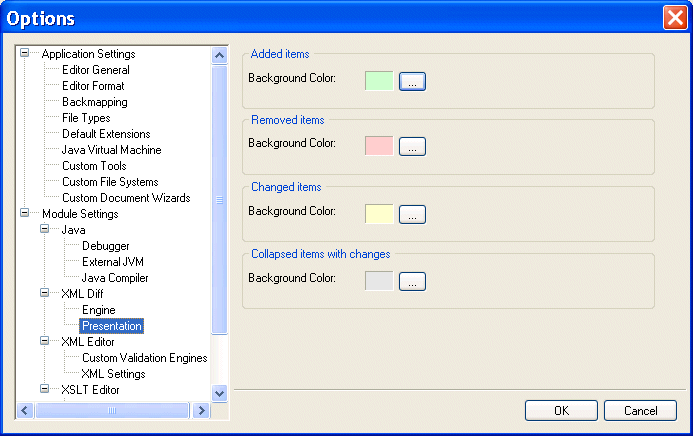
Presentation options allow you to modify the settings for the background colors Stylus Studio uses to identify the types of changes detected in diffed documents and folders
|
|
Figure 139. You Can Change Colors Used to Identify Document Changes
You can change the background colors for the following:
- Added items
- Removed items (that is, items that are present in the target, but are not present in the source, for example)
- Changed items (the same element or attribute, but a different name, for example)
- Collapsed items with changes
 Cart
Cart