Cart
Cart
|
Home >Online Product Documentation >Table of Contents >Defining Data Elements in a Sample DTD Defining Data Elements in a Sample DTDThis topic is part of a sequence that starts with Creating a Sample DTD.
In your DTD, suppose you want a To accomplish this, perform the following steps:
1. At the bottom of the DTD editor, click the Tree tab.
2. Click the DTD node at the top of the tree if it is not already selected.
3. Click New Element Definition  , which is the top button in the tool bar on the left side of the DTD editor window.
Stylus Studio displays an entry field for the element name.
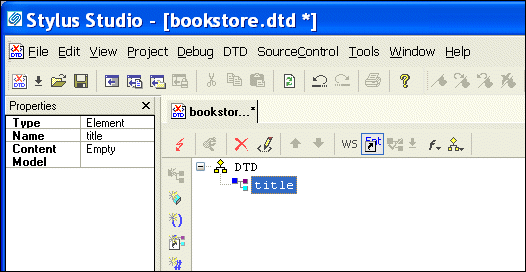
4. Type title and press Enter.
Stylus Studio displays the new element,
5. Click New Modifier  .
.
Stylus Studio displays an entry field for the element's modifier.
6. Double-click Zero or More.
The new modifier is added to the element.
7. Click Add #PCDATA  .
.
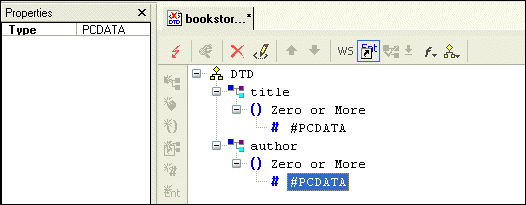
8. To define the author element, repeat step 2 through step 7. In step 4, type author instead of title.
When you are done, the Stylus Studio desktop should resemble the following: |

XML PRODUCTIVITY THROUGH INNOVATION ™