Cart
Cart|
Home >Online Product Documentation >Table of Contents >Simple Table Formatting Simple Table FormattingIn this section, we will perform some simple formatting to make the table more presentable. We will start by making the column headings, Title and Rating, bold.
16. First, click the Show Text Symbols button (  ) in the toolbar.
This removes text symbols (like spaces and paragraph markers) from the canvas, which can make the canvas easier to work with while you build the report.
17. Click anywhere in the cell containing the Title string.
18. Click the Bold tool on the toolbar (  ).
).
The Title string appears bold in the canvas.
19. Make the Rating string bold.
Next, we want to adjust the width of the first column, so the ratings appear closer to the title.
20. Click either of the rows in the table's first column.
21. Click the Column tab in the Properties window. (If the Properties window is not displayed, select View > Properties from the Stylus Studio menu.)
22. Enter 40% for the Width property.
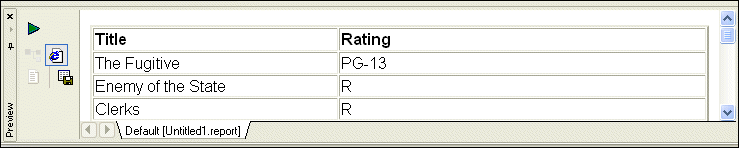
23. Click Preview (  ).
).
The Preview window displays the changes. |

XML PRODUCTIVITY THROUGH INNOVATION ™