Cart
Cart|
Home >Online Product Documentation >Table of Contents >Component Properties Component PropertiesEach component in a report - the body, tables, lists, repeaters, and so on - is associated with a set of properties that control its formatting and content. The text component has properties for Color, Font, Size, and so on. The Color property, for example, lets you select aqua, bisque, blue, and so on. Properties vary based on the component. (See Properties Reference for a complete list.) Context and XPath Sub-Properties
Each property has Context and XPath sub-properties that let you define the conditions under which you want to, say, display a value or apply a given formatting characteristic. You can use the Color property's Context and XPath sub-properties to format text based on the value returned by an XPath expression - format all `R' rated movies in The Properties WindowComponent properties are displayed in the Properties window, a dockable window you can place anywhere on your desktop. To display the Properties window, click View > Properties
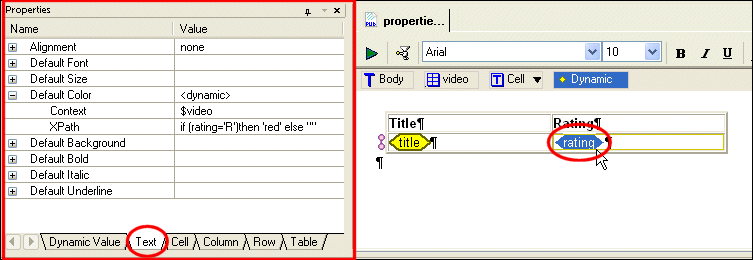
The Properties window consists of one or more tabbed pages. The specific tabs that are present in the Properties window vary based on the component you have selected in the report canvas. As shown in Figure 510, the Properties window for the The order of the tabs in the Properties window reflects the hierarchy of the currently selected component, from the most specific (the currently selected component) to the most general (the parent component to which it belongs), left to right. The report body has Document, Decimal Format, and Text tabs that let you control global formatting characteristics. Example: Using Context and XPath Sub-Properties to Format Text
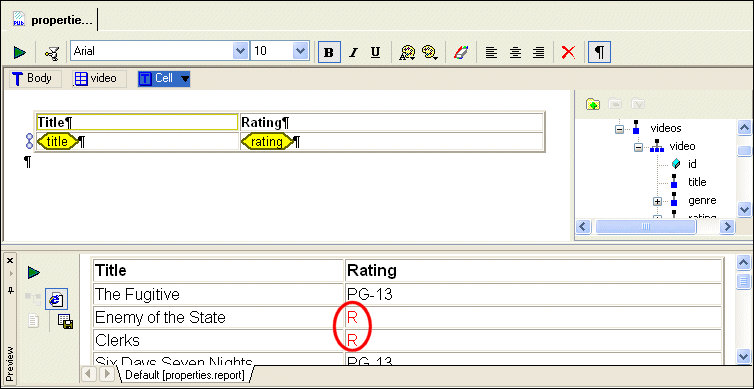
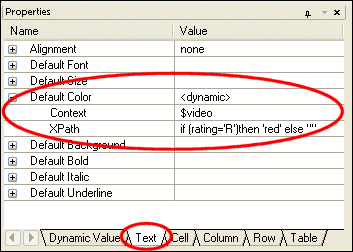
Our report contains a table based on the If we look at the properties for the rating element, we can see how this was achieved.
As you can see, Default Color property is specified as
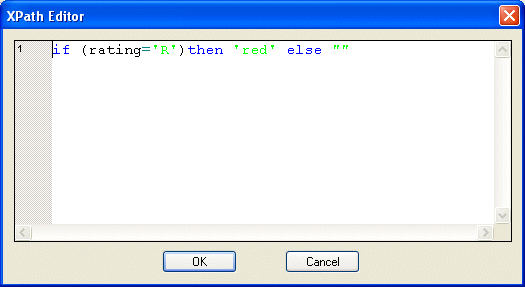
Together, these properties control when data from the Entering XPath ExpressionsYou can enter an XPath expression by typing directly in the XPath field. If you prefer, you can use the XPath Editor dialog box, shown in Figure 513. The XPath Editor dialog box supports Stylus Studio's Sense:X auto-completion and text coloring, which can provide useful prompts as you type your XPath expression. To display the XPath Editor dialog box:
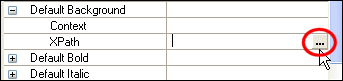
1. Click the XPath entry field for the property you want to define.
The text cursor and a "more" button appear in the field.
2. Click the "more" button.
Stylus Studio displays the XPath Editor dialog box. |

XML PRODUCTIVITY THROUGH INNOVATION ™