Cart
Cart
|
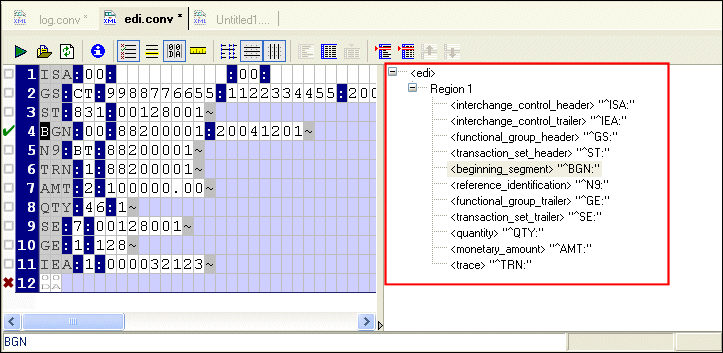
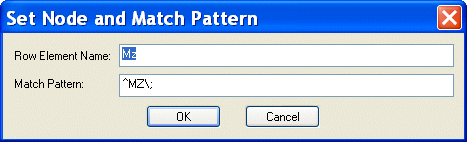
Home >Online Product Documentation >Table of Contents >Schema Pane Schema PaneThe schema pane displays a representation of the XML Schema for the XML document that will be output when the input file is converted to XML. You can double-click on a row element to display the Set Node and Match Pattern dialog box, shown in Figure 161. This functionality provides an alternative to editing the row name and specifying a match pattern in the Properties window. (To learn more about patterns and how to use them in your custom XML conversion definitions, see Pattern Matching.) You can also edit schema node names directly in the schema pane - just click twice to place the node name in edit mode. See Rows to learn more about specifying conversion properties for rows. |

XML PRODUCTIVITY THROUGH INNOVATION ™