Home >Online Product Documentation >Table of Contents >Creating a collection() Statement
Creating a collection() Statement
This topic describes how to create a collection() statement in your XQuery code automatically. If you prefer, you can always write the collection() statement manually. Regardless of how you input the collection() statement in your XQuery code, Stylus Studio will be able to execute it only if you have created a database connection for the database associated with the table or view referenced in the collection() function calls and have registered that connection with the XQuery.
collection() Function Syntax
The collection() function takes as its argument a URI that identifies a specific database table or view, such as this function referencing the title column of the books table in the pubs2 database:
collection("pubs2.dbo.books")/books/title
You can always edit collection() functions created by Stylus Studio. As long as they refer to an object that is available based on the database connection associated with the XQuery, the collection() function will execute successfully. See Choosing a Database Object for more information on this topic.
What Happens When You Create a collection() Statement?
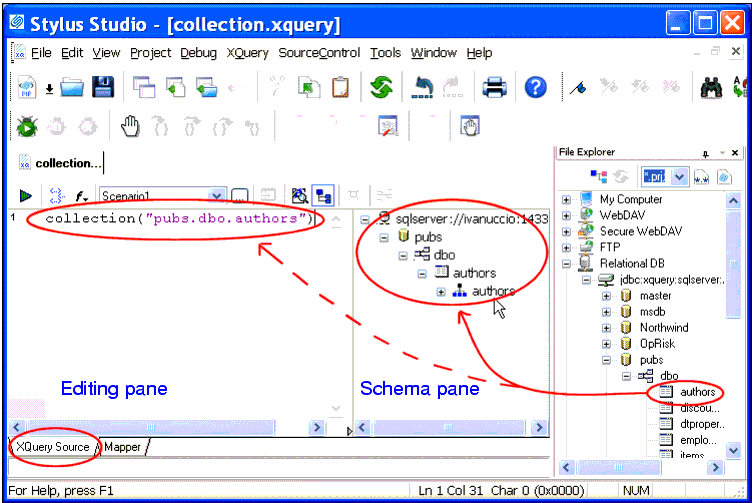
You create a collection() statement by selecting the table or view you want to query from the File Explorer window, and dropping it on the editing pane of the XQuery Source tab in the XQuery Editor. When you drop the table or view on the editing pane, Stylus Studio
- Automatically creates the
collection() statement in the XQuery code based on the table or view you selected - Registers with the XQuery the connection information for the database associated with the selected table or view, and displays the database in the schema pane of the XQuery Editor, as shown here:
|
Figure 323. collection() Statements are Created Automatically
Once the database connection information is registered with the XQuery, you can expand the database nodes in the schema pane to display individual table and view columns.
Creating Multiple Connections
When you drop an object on the editing pane from the File Explorer window, Stylus Studio displays the connection information in the schema pane of the XQuery Editor. If you then drag and drop another object, Stylus Studio either
- Adds a new connection, if the object was from a different server or port
- Modifies the existing connection, if the object is from the same server and port
A new collection() statement is created for each object you drop on the editing pane of the XQuery editor.
How to Create a collection() Statement
To create a collection() function:
1. Open a new XQuery if one is not already open. The XQuery Source tab should be displayed.
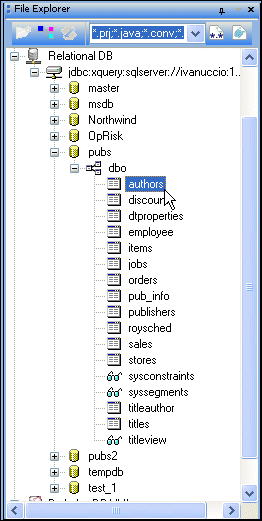
3. In the File Explorer window, expand the database and tablespace to display the tables or views you want to access in your XQuery, as shown in this example:
|
Figure 324. Expanded Database Connection
Optionally, display table and view columns by selecting Read Structure from the table or view shortcut menu (right-click).
4. Drag the desired table or view and drop it on the editing pane of the XQuery Source tab.
Optionally, drop the table or view on the schema pane of the XQuery Source tab. If you do this, you must then drag the desired table or view from the schema pane to the editing pane to create the collection() statement.
Stylus Studio creates the collection() statement based on the table or view you selected in step 4. It also displays the table's or view's database in the schema pane of the XQuery Editor (see Figure 323).
 Cart
Cart