Cart
Cart
|
Home >Online Product Documentation >Table of Contents >Creating a Database Connection Creating a Database Connection
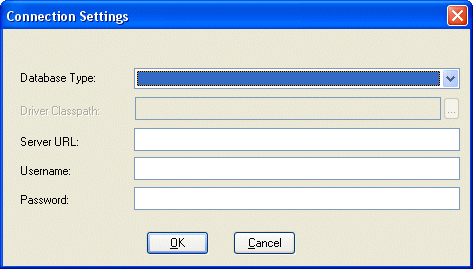
Before you can execute a This section covers the following topics: Supported DatabasesStylus Studio provides support for the following relational databases: Drivers for most of these databases are bundled with Stylus Studio. For some, like PostgreSQL, for example, you need to specify the classpath for the database driver. The Connection Settings Dialog BoxIn Stylus Studio, you use the Connection Settings dialog box to specify database connection properties. Settings vary from database to database, but they typically include the following:
Using the Server URL FieldYou use the Server URL field to identify the server hosting the database to which you want to connect, the port to use, and any other required or optional parameters. For example, the string used to connect to a Microsoft SQL Server database might look like this: 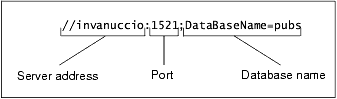 The specific syntax of the string you enter in the Server URL field varies based on database type. Consult your database documentation for information regarding connectivity syntax and optional parameters.
How to Create a Database ConnectionTo create a database connection:
1. Display the File Explorer window if it is not already open (View > File Explorer).
2. In the File Explorer window, right-click the RelationalDB icon and select New Server from the short-cut menu.
Stylus Studio displays the Connection Settings dialog box.
3. Specify the information needed to create the database connection. See The Connection Settings Dialog Box if you need help with this step.
4. Did you select a database in the Database Type field for which you must specify a driver?
If yes, go to step 5. If no, go to step 6.
5. When you select a database in the Database Type field for which you must specify a driver, the Driver Classpath field becomes enabled. To specify the driver location:
a. Click the more button (  ).
).
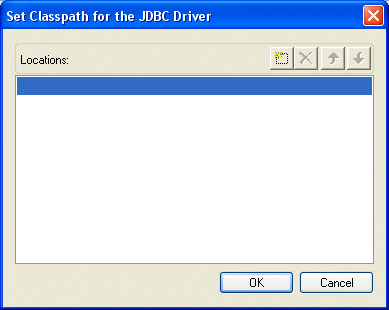
The Set Classpath for the JDBC Driver dialog box appears.
b. Click the browse folders (  ) button.
A new entry field appears in the Locations list box. Two buttons appear to the right of the entry field.
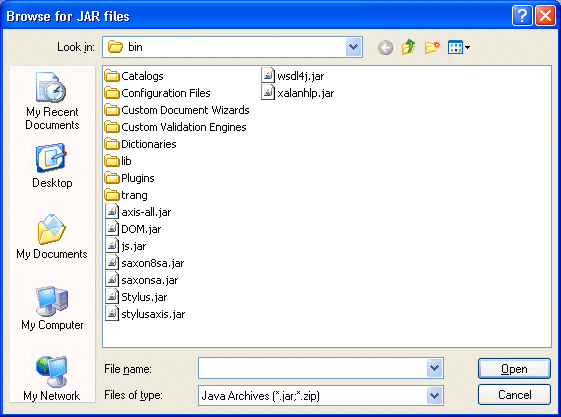
c. To add a JAR file to the classpath, click the browse jar files button (  ).
).
Stylus Studio displays the Browse for Jar Files dialog box.
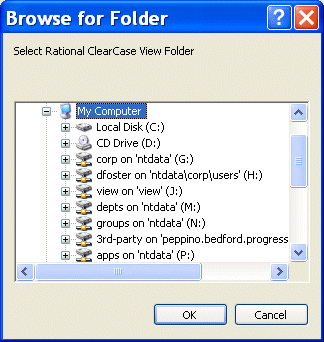
To add a folder to the classpath, click the browse folders button ( Stylus Studio displays the Browse for Folder dialog box.
d. When you have located the JAR file or folder you want to add to the classpath, click OK.
The file appears in the Locations list box of the Set Classpath for the JDBC Driver dialog box.
e. Click OK.
The JAR file or folder appears in the Driver Classpath field of the Connection Settings dialog box.
6. Click OK on the Connection Settings dialog box.
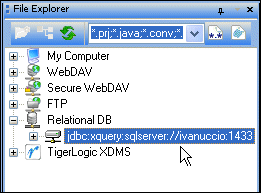
The server connection appears in the File Explorer window. |

XML PRODUCTIVITY THROUGH INNOVATION ™
 ).
).