|
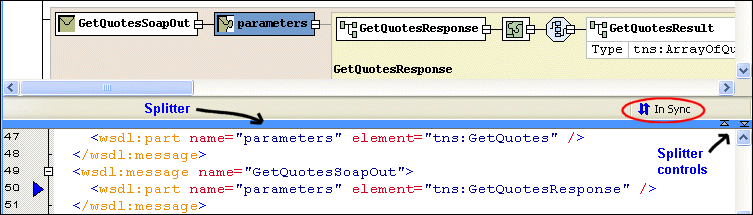
Home >Online Product Documentation >Table of Contents >Text Pane Text PaneThe text pane appears below the diagram pane. The two panes are separated by a horizontal splitter, as shown in Figure 374. If you want, you can display WSDL document text and the diagram at the same time, using the splitter to change the relative size of the text and diagram panes. You use the splitter controls to hide either the text pane or the diagram pane with single click. As you edit the document, using either the diagram or text area, Stylus Studio displays informational messages as changes are being made and when the two views are synchronized. Text and diagram views are synchronized automatically.
The default font for text is Courier New, but you can change it to whatever font you want by clicking the Change Font button ( |

Using Relational Data in XML Applications
"Using Relational Data in XML Applications" By Dr. Michael Kay covers an overview of several common use cases and provides insight into the benefits and drawbacks of using the approaches available today including XQuery and SQL/XML.
XSD Documentation Generator
Stylus Studio®'s XSD Editor includes an integrated XSD documentation generator, allowing you to easily publish XML content models defined in XSD in a convenient, HTML format.
Investments and Financial Companies That Use Stylus Studio
Stylus Studio provides XML tools & components to leading investment and financial companies! See which top investment and financial companies are banking on Stylus Studio 2006 to simplify their dollars and cents.
EDI Mapping
To transform EDI to XML, whether for X12 or EDIFACT, Stylus Studio provides the design tools and run-time support. EDIFACT, X12 and custom EDI formats can be translated, validated and mapped using the EDI Mapping adapter technology described here.