|
|
Home >Online Product Documentation >Table of Contents >How to Run a Scenario How to Run a ScenarioTo run a scenario:
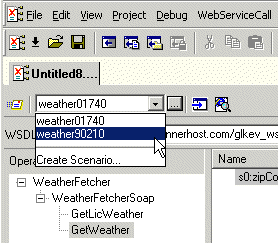
1. Select a scenario from the scenario drop-down list at the top of the editor window: Alternative:
a. In the Web Service Call Composer tool bar, click Stylus Studio displays the Scenario Properties dialog box.
b. On the General tab, select the scenario you want to run from the Existing preview scenarios list.
c. Click OK.
2. Click the Send Request button (
|
Sun Multi-Schema XML Validator (MSV)
Learn how to integrate the Multi Schema Validator (MSV) into Stylus Studio as one of the Custom Validation Engines. It will work for files with a DTD, a single XSD, or both a DTD and a single XSD.
XML Project
Stylus Studio's Project Window is an intuitive, visual feature for organizing files belonging to a project. It supports different file-type icons and nested folders; many helpful options are available from the context menu.
Support for US National Library of Medicine (NLM) Document Type Definitions
Stylus Studio provides support for editing and validating XML documents using US National Library of Medicine data models. In this tutorial, we'll provide a step-by-step overview of how to use the NLM DTD's in Stylus Studio!
XML Well-Formedness Checker & XML Indenter
Tidy up your XML documents with powerful integrated XML editing utilities including a single-click XML formatter, pretty printer, XML indenter and XML well formedness checker.