Cart
Cart|
|
Home >Online Product Documentation >Table of Contents >How to Create a Scenario How to Create a ScenarioTo create a scenario:
1. Create a Web service call if you haven't already. See How to Compose a Web Service Call if you need help with this step.
2. Display the Scenario Properties dialog box by clicking  in the Web service editor tool bar.
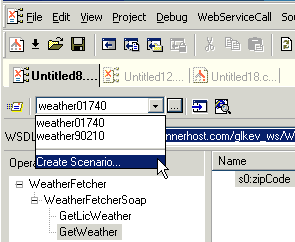
Alternative: Select Create Scenario from the scenario drop-down list at the top of the editor window:
3. On the General tab, specify a name for the Web service call scenario.
4. Click the Binding tab.
5. Select the appropriate transport protocol from the Transport drop-down list.
6. Specify the binding properties you want to associate with this Web service call scenario.
7. Click OK.
The Web service call scenario is saved with the name and settings you specified. |

XML PRODUCTIVITY THROUGH INNOVATION ™