Cart
Cart
|
Home >Online Product Documentation >Table of Contents >Compiling Generated Java Code Compiling Generated Java Code
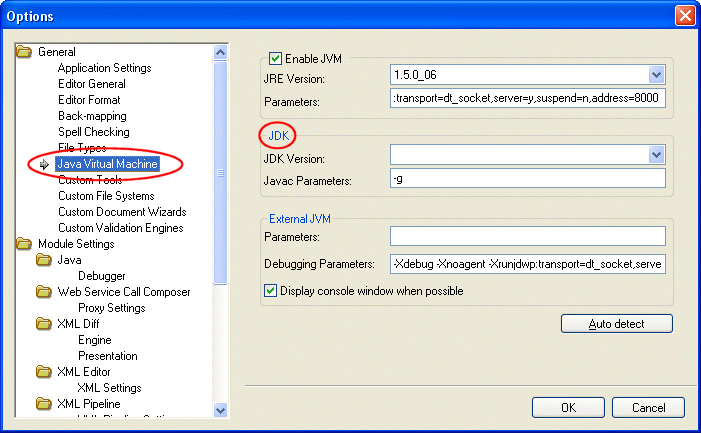
The deployer automatically puts the JAR files required to compile the generated Java code in the Stylus Studio project classpath. JAR files are in the How to Compile and Run Java Code in Stylus StudioIn order to compile Java code, the JDK must be installed on your machine and configured in Stylus Studio. Click Tools > Options > Java Virtual Machine to configure the JDK. To compile Java code in Stylus Studio:
1. Make sure the Java Editor is the active window.
2. Click the Compile button (  ).
).
Alternatives: Press Ctrl + F7, or select Java > Compile from the Stylus Studio menu. Stylus Studio compiles the Java code. Results are displayed in the Output window. Troubleshooting Compiling Inside Stylus StudioIf you have trouble compiling Java code in Stylus Studio
1. Remove the existing Stylus Studio project classpaths from the Project Classpath dialog box (select Project > Set Classpath from the menu).
2. Generate code again, which causes Stylus Studio to respecify the project classpaths.
Compiling Java Code Outside Stylus Studio
If you want to compile the Java code generated for your XML pipeline outside Stylus Studio, you will need to manually set your classpath to include the JAR files listed at the top of the generated Running Java Code in Stylus StudioTo run Java code in Stylus Studio:
1. Make sure the Java Editor is the active window.
2. Click the Run button (  ).
).
Alternatives: Press Ctrl + F5, or select Java > Run from the Stylus Studio menu. If the code has not been compiled, Stylus Studio displays a prompt asking if you want to compile the code now. Otherwise, Stylus Studio runs the Java code. Results are displayed in the Output window. |

XML PRODUCTIVITY THROUGH INNOVATION ™