Cart
Cart
|
Home >Online Product Documentation >Table of Contents >Using Stylus Studio to Build a Converter URL Using Stylus Studio to Build a Converter URLIf you have Stylus Studio 2008 XML Enterprise Suite, you can use Stylus Studio to construct converter URLs. Converter URLs can be complex - property names and their values vary from one XML Converters to another, for example - so using Stylus Studio to construct them can reduce errors in your applications. Using the URL in the Select XML Converter Dialog BoxTo construct a converter URL using the URL in the Select XML Converter dialog box:
1. Use the XML Converters or custom XML conversion definition to open a file as an XML document in Stylus Studio. See Using XML Converters to Open a Non-XML File as XMLor How to Open a File Using a Custom XML Conversion Definition if you need help with this step.
2. Before clicking OK to complete the conversion, copy the converter URL in the URL field of the Select XML Converter dialog box (see Figure 185).
3. Click OK to complete the conversion. (You can click Cancel if you are peforming this procedure just to obtain the converter URL.)
4. Paste the converter URL in your XSLT or XQuery code as needed.
Using the URL in the Properties WindowTo construct converter URL using the URL in the Properties window:
1. Use the XML Converters or custom XML conversion definition to open a file as an XML document in Stylus Studio. See Using XML Converters to Open a Non-XML File as XMLor How to Open a File Using a Custom XML Conversion Definition if you need help with this step.
2. Open a new document in any Stylus Studio text editor (for example, File > New > XML Document).
The purpose of this step is to provide an editor into which you can drag-and-drop the the document you created in step 1 in order to display the associated converter URL.
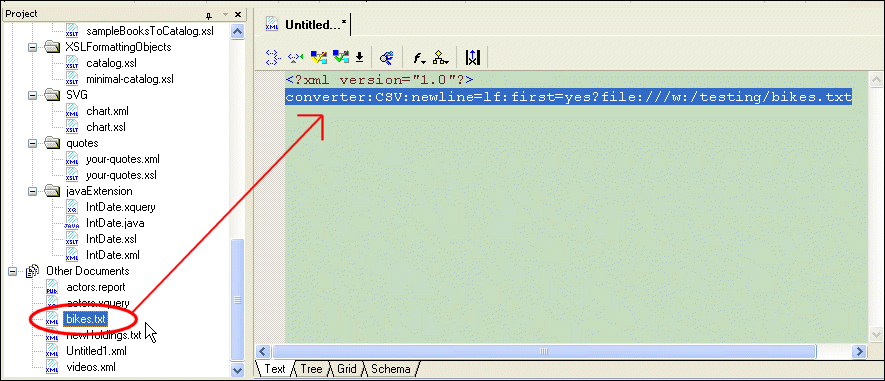
3. Drag the document you created in step 1from the Project window and drop it into the text editor you opened in step 2.
The complete URL appears in the text editor.
4. Copy the complete converter URL.
5. Paste the converter URL in your XSLT or XQuery code as needed.
Note: Escape characters as required for strings in Java programs. For example, |

XML PRODUCTIVITY THROUGH INNOVATION ™