Home >
Online Product Documentation >
Table of Contents >
Diagram Properties - Schema Details
Diagram Properties - Schema Details
You use the
Schema Details page of the
Diagram Properties dialog box to specify which properties of an XML Schema's nodes you want to display in the
Diagram tab of the XML Schema Editor. For each type of node (elements, complexTypes, and so on) and for a node's individual properties (name, type, and so on), you use the
Inline visibility in diagram settings to
- Show the property and its value
- Show the property only if it is not empty
- Hide the node's properties
In order to streamline presentation of the XML Schema in the diagram, most properties are hidden by default.
|
Note
|
|
You set node display properties for WSDL elements separately, using the
WSDL Details page.
|
Example
The following illustrations show how
Inline visibility in diagram settings affect the appearance of the
Mode element in the
ProductLine complexType.
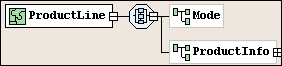
Hide setting. This is the default setting. (The
ProductInfo node is included for context).
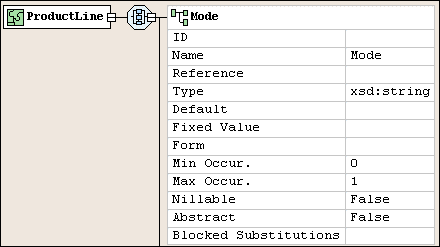
Show setting. Notice that even properties that do not have a value defined for them are displayed:
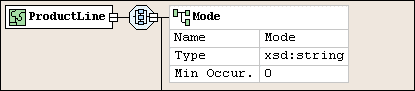
Show if not empty setting. Only those values for the
Mode element that have been explicitly set are displayed in the diagram:
|
|
Figure 517. Show if not empty setting
Fields
Category/Property
The node and, optionally, properties whose inline visibility settings you want to change.
Inline visibility in diagram
The conditions under which you want to display a property and its values in the XML Schema diagram. Inline visibility options are:
- Hide - The property and its value is always hidden. This is the default.
- Show - The property and its value is always displayed, even if the property does not have a value.
- Show if not empty - The property and its value is displayed only if the property has a value. Properties with a default value (maxOccurs="1", for example) and properties for which no value has been explicitly set do not appear using this setting.
|
Tip
|
|
If all of a node's properties have the same show/hide setting (
Hide or
Show if not empty, for example), that value is displayed in the
Inline Visibility in Diagram field. If no value is displayed in the
Inline Visibility in Diagram field, it means that two or more properties have different show/hide settings.
|
Permanently Setting Display Properties
You can permanently set XML Schema diagram properties using the
Options dialog box. See
Options - Module Settings - XML Schema Editor - Schema Details.
For More Information
Introduction to the XML Schema Editor Diagram Tab
Defining an XML Schema Using the Diagram Tab - Getting Started

 Cart
Cart