Cart
Cart|
|
Home > Online Product Documentation > Table of Contents > Connecting to TigerLogic XDMS Connecting to TigerLogic XDMSThe TigerLogic XDMS file system is accessible from the In addition, if you know the file system URL for a specific TigerLogic XDMS database, you can enter it in a URL field (in the Open dialog box, for example) and connect to the file system in that fashion. What Happens When You ConnectWhen you connect to the server hosting TigerLogic XDMS, Stylus Studio caches the information used to establish the connection - host name and port, username, and password - for the duration of the Stylus Studio session. When you exit Stylus Studio, all connections are dropped. Only the host name and port information is retained to help simplify subsequent connections.
How to Connect to TigerLogic XDMSTo connect to TigerLogic XDMS:
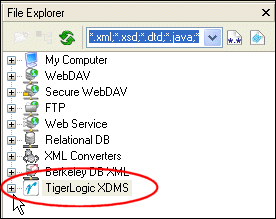
1. In the
File Explorer window, expand the TigerLogic XDMS folder.
Alternative: On the Stylus Studio menu, Click File > Open, and then click the TigerLogic XDMS icon.
Stylus Studio displays the Choose Server dialog box.
2. Complete the
Server Name, (server address and port;
myServer:3008, for example)
User Name, and
Password fields, and click OK.
Stylus Studio connects you to the host specified in the Server name field. Icons representing the host and the TigerLogic XDMS databases residing on that host appear in the File Explorer window.
3. Optionally, expand the database folders to view the TigerLogic XDMS collections stored on that database.
4. Optionally, expand the collection folders to view the XML documents stored there.
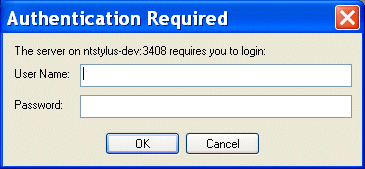
ReconnectingIf you lose your connection with the server hosting the TigerLogic XDMS file system, and a document from a TigerLogic XDMS collection is open, Stylus Studio displays the Authentication Required dialog box the next time you try to access that document.
This dialog box can appear, for example, when you The Authentication Required dialog box prompts you for the username and password you used when you first established a connection with the server. |

XML PRODUCTIVITY THROUGH INNOVATION ™