Cart
Cart|
Home > Online Product Documentation > Table of Contents > Configuring DataDirect SequeLink to Reference an ODBC System Data Source Configuring DataDirect SequeLink to Reference an ODBC System Data SourceUse the procedure described in this section to configure DataDirect SequeLink to reference an ODBC system data source. To configure DataDirect SequeLink:
1. Start the DataDirect SequeLink 5.4 Manager. For example,
Start >
Programs >
DataDirect SequeLink 5.4 Service for ODBC Socket >
SequeLink 5.4 Manager Snapin.
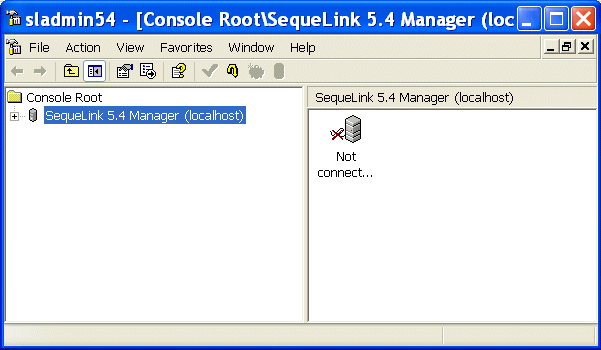
The sladmin54 window appears.
2. Expand the
SequeLink 5.4 Manager (localhost) branch. This exposes another branch,
Not connected to SLAgent54.
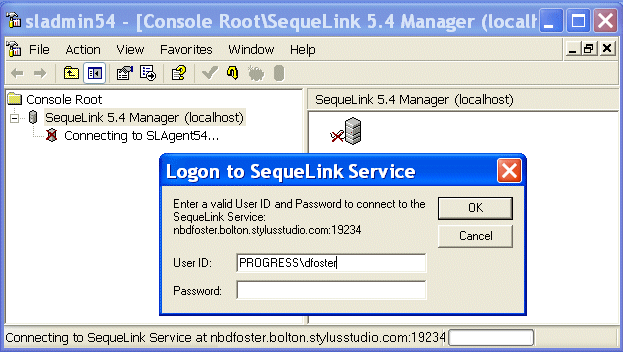
3. Expand the
Not connected to SLAgent54 branch.
The Logon to SequeLink Service dialog box appears.
4. Enter a user ID and password and click
OK to connect to the SequeLink Service you created when you installed the DataDirect SequeLink SocketServer. (This will be the user ID and password for the machine on which you installed the DataDirect SequeLink SocketServer.)
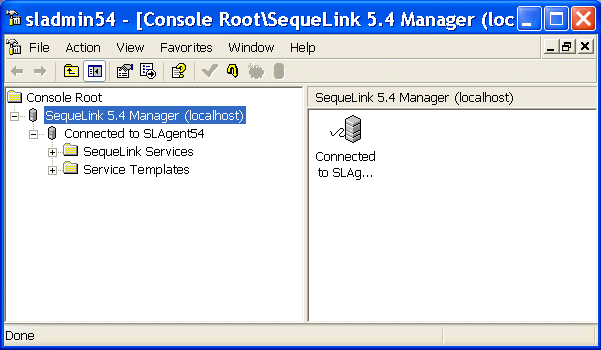
After connecting to the SequeLink Service, the information in the sladmin window changes.
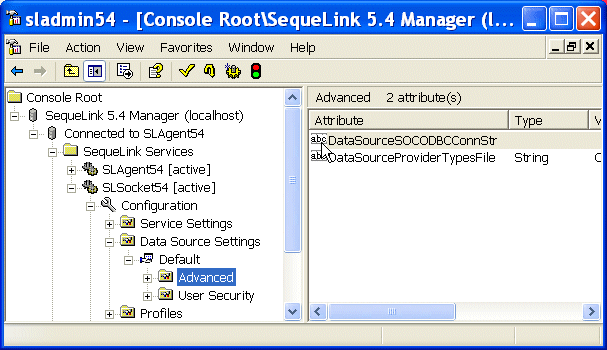
5. Once you are connected, expand the
SLSocket54 [active] branch as follows:
Configuration >
Data Source Settings >
Default >
Advanced. When you are done, your
sladmin window should look like this:
6. Double-click
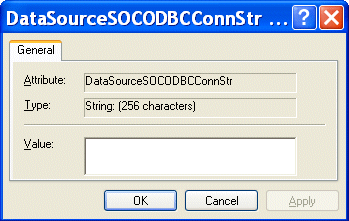
DataSourceSOCODBCConnStr.
The DataSourceSOCODBCConnStr dialog box appears.
7. In the
Value field, enter the following:
DSN=data source name, where data source name is the name of the data source you created in
step 6 of the procedure described in
Creating an ODBC System Data Source.
8. Click
OK, and close the
sladmin window.
Now that you have created and configured the ODBC system data source, you can use it to create a DB-to-XML data source in Stylus Studio as described in Using DataDirect SequeLink as a DB-to-XML Data Source. |

XML PRODUCTIVITY THROUGH INNOVATION ™