Cart
Cart
|
Home > Online Product Documentation > Table of Contents > Creating a New Sample Stylesheet Creating a New Sample StylesheetTo create a stylesheet to use in this tutorial, follow these instructions:
1. From the Stylus Studio menu bar, select
File
>
New
>
XSLT: Text Editor.
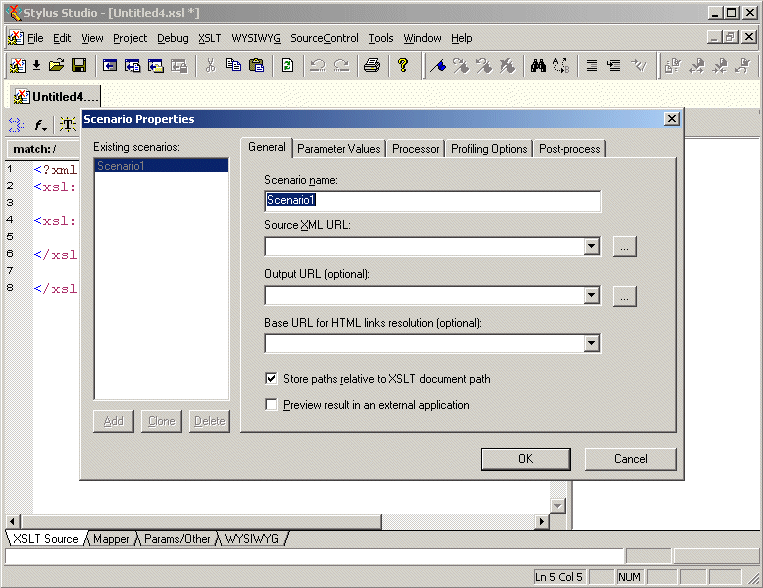
Stylus Studio displays a new untitled stylesheet and the Scenario Properties dialog box, and selects the text in the Scenario Name field.
2. In the
Scenario Properties dialog box, in the
Scenario Name field, type DynamicBookstoreScenario.
3. Click
Browse
 to the right of the
Source XML URL: field.
to the right of the
Source XML URL: field.
Stylus Studio displays the Open dialog box.
4. Navigate to the Stylus Studio
examples\query directory.
5. Double-click
bookstore.xml. This is the XML document that the new stylesheet will operate on.
6. In the
Scenario Properties dialog box, click
OK.
This creates a scenario with the name
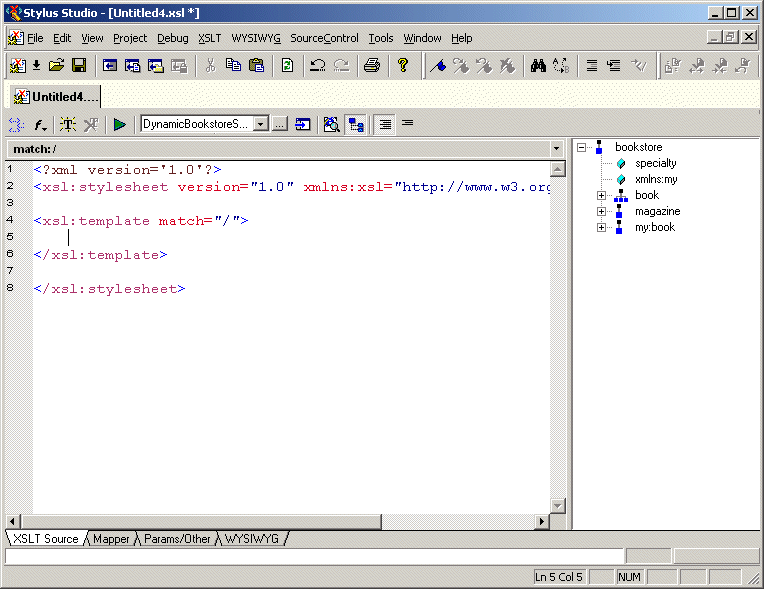
Stylus Studio displays the new stylesheet in the XSLT editor. A tree representation of the
The default stylesheet that Stylus Studio creates contains one template, which matches the root node.
7. In the XSLT editor tool bar, click
Preview Result
 .
.
Stylus Studio displays the Save As dialog box so you can save the XSLT you are composing.
8. In the
URL: field, type bookstore.xsl and click
Save.
Stylus Studio applies the new stylesheet to
9. In the XSLT editor pane, click in the empty line that follows
<xsl:template match="/"> .
10. Type <x, which displays the Sense:X completion list.
11. In the completion list, scroll down and double-click
xsl:apply-templates.
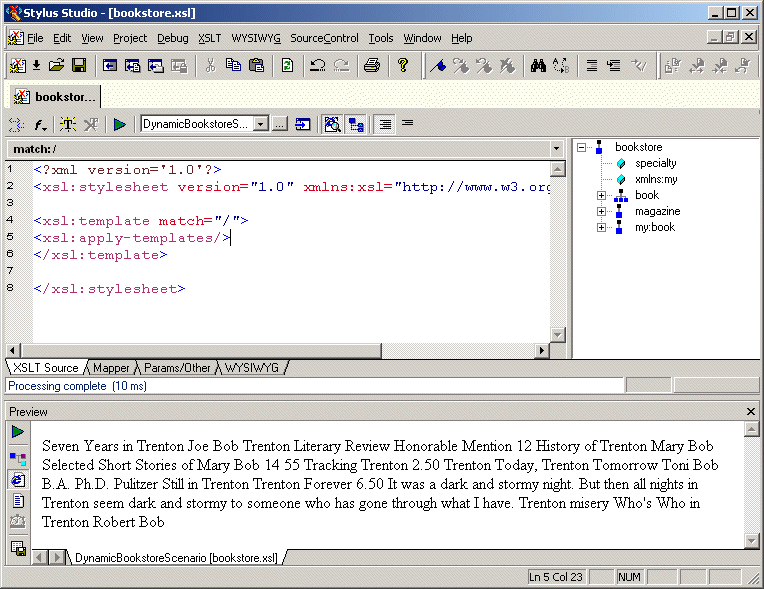
12. Type />.
13. In the XSLT editor tool bar, click
Preview Result
. This time, the
Preview window contains all text in
bookstore.xml and none of the markup. This is because the
xsl:apply-templates instruction instantiates the default templates.
14. In the Stylus Studio tool bar, click
Save
 .
.
To create a Web page, you need to add HTML markup that displays the information the way you want. To make it easier to do that, you need to understand how the text is already being copied to the result document. |

XML PRODUCTIVITY THROUGH INNOVATION ™