
 Cart
Cart
|
Home > Online Product Documentation > Table of Contents > XSLT Scenarios XSLT Scenarios
This topic is part of a sequence. If
To apply a stylesheet to an XML document in Stylus Studio, you use a scenario. A scenario is a group of customizable settings that allows you to experiment with different source XML documents (that is, the XML document to which you will apply the XSLT), processors, parameter values, post-processors, and profiling settings. You can also use scenarios to perform validation on the XML document that results from the XSLT processing. (Validation is always performed before any post-processing you specify.)
You can define multiple scenarios using different settings to see how each affects document processing. Stylus Studio also supports scenarios for Web service calls, DB-to-XML Data Sources, and XQuery. An XSLT scenario is defined by a single stylesheet-XML document pair. You can associate any number of scenarios with a stylesheet, though only one scenario can be in effect at the time the XSLT is processed. Similarly, you can associate any number of scenarios with an XML source document.
A scenario has already been created for the
To run a scenario, click Preview Result
|
 .
.
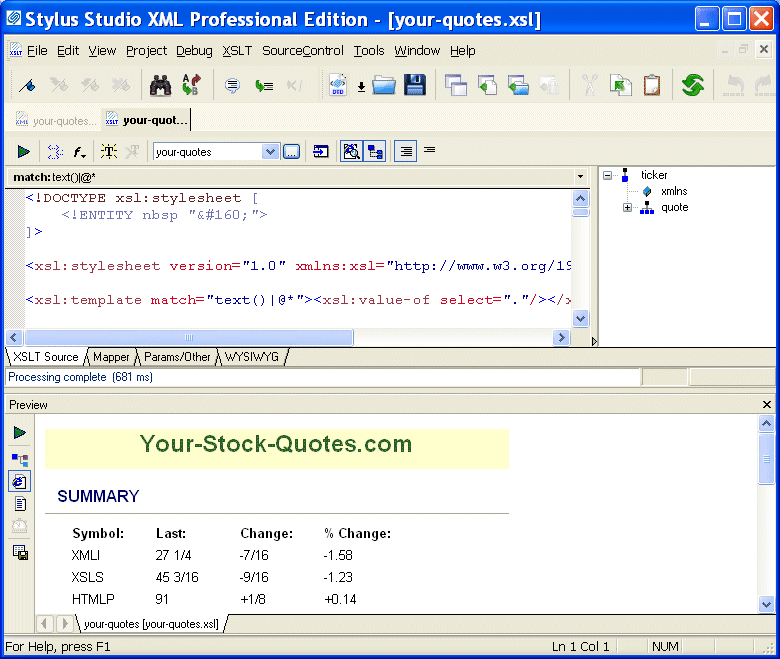
 and
Preview Text
and
Preview Text
|
Tip
|
|
If it is not already open, you can open the source XML document specified in a scenario by clicking
Open XML From Scenario
|
 in the XSLT Editor tool bar.
Working with Scenarios
To define additional scenarios, click the down arrow next to the scenario field in the XSLT Editor tool bar, and click Create Scenario. After you have more than one scenario, click the same down arrow to select the scenario you want to use to preview a result.
To change the properties of a scenario, or to delete a scenario, select the scenario you want to change or delete, and then click
Browse
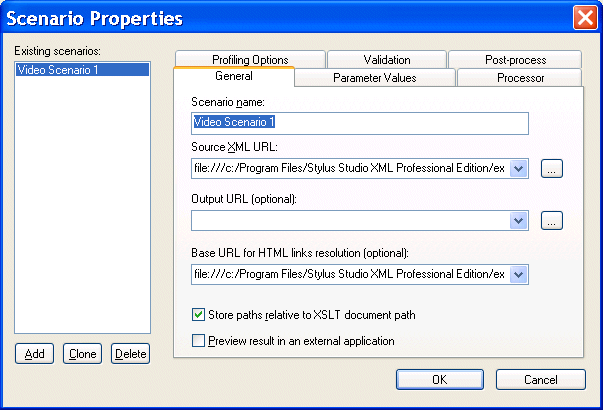
 to the right of the scenario name field. Stylus Studio displays the
Scenario Properties dialog box.
to the right of the scenario name field. Stylus Studio displays the
Scenario Properties dialog box.
About Preview
When you preview a result, Stylus Studio automatically saves the changes you have made to the document. If you want to revert to the document's previous state, you can use the undo function ( Edit > Undo).
Working with a Sample Result Document
This topic is part of a sequence. If
your-quotes.xsl is not open, see
Opening a Sample Stylesheet. The sequence starts with
Exploring the XSLT Source Tab.
To work with a sample result document, follow these steps:
Using its back-mapping functionality, Stylus Studio displays the template in the XSLT Editor's status bar and flags the line that generated the line you clicked with a blue pointer.
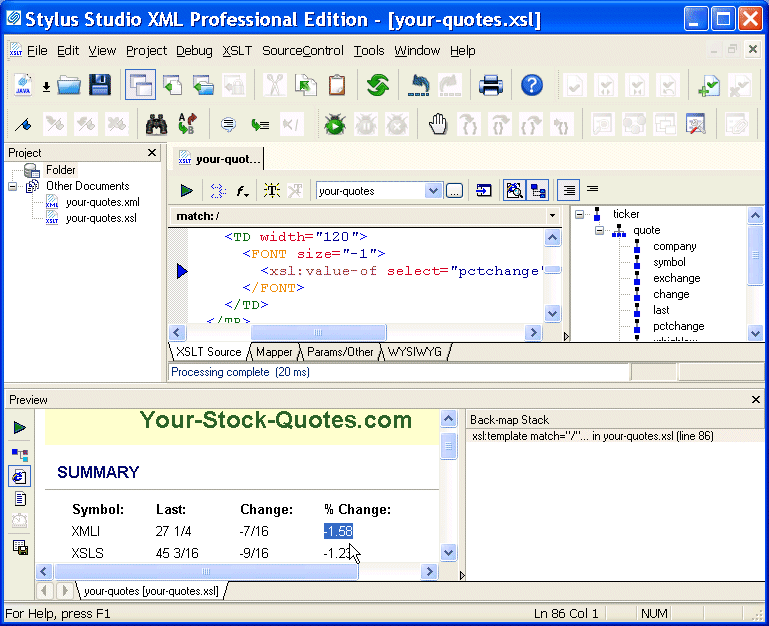
 . Stylus Studio displays the HTML file that generates the
browser display.
. Stylus Studio displays the HTML file that generates the
browser display.
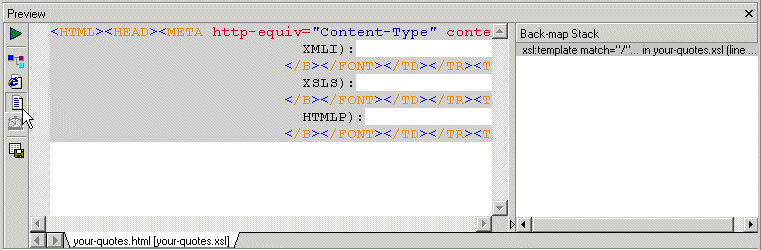
This works in reverse as well. If you click a line in a template (full source mode or template mode), Stylus Studio uses a gray background to display the HTML generated by that template.
 . Stylus Studio displays the
Save As dialog box. If you want, you can enter a file name and click
Save to preserve the generated HTML file. Otherwise, click
Cancel.
. Stylus Studio displays the
Save As dialog box. If you want, you can enter a file name and click
Save to preserve the generated HTML file. Otherwise, click
Cancel.


