Cart
Cart|
|
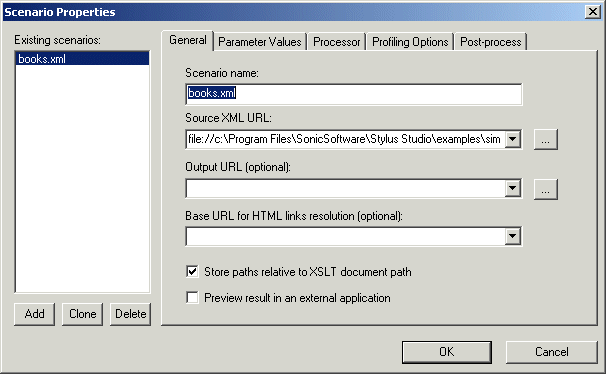
Home > Online Product Documentation > Table of Contents > Overview of Scenario Features Overview of Scenario FeaturesThis section describes the main features of XSLT scenarios. It covers the following topics: Specifying XML Source DocumentsThe main benefit of the XSLT scenario feature is that it lets you specify the XML document against which you want to run your XSLT. By default, Stylus Studio uses the first source document you add using the XSLT mapper as the XML source document for the scenario. You can specify the XML source document setting on the General tab of the Scenario Properties dialog box.
For more informationSee Source Documents to learn more about the process of selecting and working with source documents in XSLT mapper. Setting Values for Global ParametersThe Parameter Values tab of the Scenario Properties dialog box displays any global parameters you have defined in the XSLT source and allows you to For example, imagine the following parameter defined in the XSLT source:
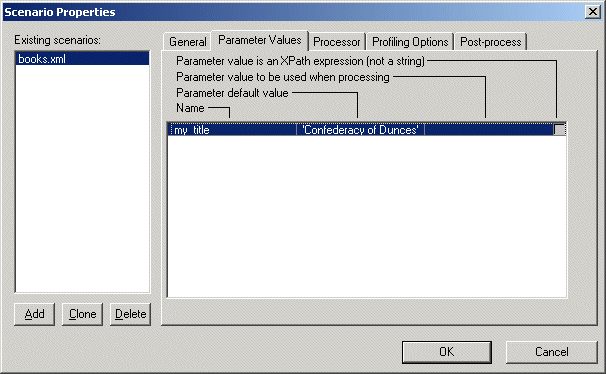
This parameter is displayed on the Parameter Values tab as follows:
If you want to specify an alternate parameter value for this scenario, click the Parameter value to be used when processing entry field. If the alternate value you enter is an XPath expression, click the associated check box.
Choosing an XSLT ProcessorBy default, Stylus Studio uses a built-in processor to process the XSLT you compose. You can select other supported processors on the Processor tab, or use this tab to specify an external or custom processor. Performance Metrics Reporting
Stylus Studio can generate an HTML report that contains information about how your XSLT is being processed. This option is off by default, but you can enable it, and choose options for the report, on the Profiling Options tab. See Profiling XSLT Stylesheets to learn more about the different ways in which Stylus Studio can provide you with XSLT performance metrics. Performing Post-ProcessingYou can use the Post-process tab to specify any optional processing you want performed on the XML after it has been processed by the XSLT. |

XML PRODUCTIVITY THROUGH INNOVATION ™