Specifying a Target Structure

There are two ways to specify an XQuery target structure:

  • You can select an existing document from which Stylus Studio infers a structure and, optionally, modify the structure. Existing nodes in a target structure are displayed in blue. Nodes that you add are displayed in red.
  • You can build a structure from scratch, starting with the root element and defining other elements and attributes as needed. Nodes for target structures you define are displayed in red.

This section covers the following topics:

For more information

See Modifying the Target Structure to learn about the types of changes you can make to a target structure.

Using an Existing Document

To use an existing document to provide the XQuery target structure:
1. Click the Mapper tab if necessary.
2. Click the Set Target Document button at the top left of the Mapper tab.

The Open dialog box appears.

3. Select the document you want to use to provide the target structure for defining the XQuery.
4. Click Open.

The structure of the document you select appears in the target document pane of the Mapper tab.

Building a Target Structure

To build a target structure from scratch, you first create a root element, and then define child elements and attributes as needed.

How to create a root element
To create a root element:
1. Click the Mapper tab if necessary.
2. Right click the area underneath the Set Target Document button.

The target document shortcut menu appears.

3. Select Create Root Element.

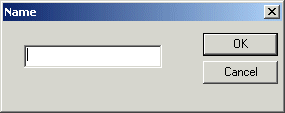
The Name dialog box appears.

Figure 241. Name Dialog Box

4. Type a name for the root element and click OK.

The root element you specified appears in the target document pane of the Mapper tab.

Note


You can create elements and attributes in a new or existing target structure.

How to tcreate elements and attributes
To create elements and attributes:
1. Click the Mapper tab if necessary.
2. Select the attribute or element to which you want to add a child element or attribute. If you have just created a root element, select the root element.
3. Right click the area underneath the Set Target Document button.

The target document shortcut menu appears.

4. Choose one of the following:
    • Add Attribute
    • Add Child Element
    • Insert Element After (This choice is not applicable to the root element; it creates the element as a sibling of the selected element.)
    • The Name dialog box appears.

      Figure 242. Name Dialog Box

5. Type a name for the node and click OK.

The node you specified is added to the target structure in the Mapper tab.

Forest & Paper Products

Many forest & paper product companies realize the best XML suite doesn't have "pay per" features. That's why these top forest & paper product companies choose Stylus Studio 2006 to get the world's best XML features all in one bundle!

Sun Multi-Schema XML Validator (MSV)

Learn how to integrate the Multi Schema Validator (MSV) into Stylus Studio as one of the Custom Validation Engines. It will work for files with a DTD, a single XSD, or both a DTD and a single XSD.

Business Solutions & Outsourcing

Business Solutions & Outsourcing companies know the best solutions. That's why they choose Stylus Studio to enhance their business productivity. See which companies are already using Stylus Studio 2006 to take care of their own business!

SQL/XML Tutorial

Many developers need to be able to write applications that work for databases from multiple vendors. This SQL/XML Tutorial refers to SQL/XML, XQuery, and Native XML Programming Languages to do just that.

Stylus Most Wanted

Site Map | Privacy Policy | Terms of Use | Trademarks
Free Stylus Studio XML Training:
W3C Member
Stylus Studio® and DataDirect XQuery™are products from DataDirect Technologies, is a registered trademark of Progress Software Corporation, in the U.S. and other countries. © 2004-2007 All Rights Reserved.