Cart
Cart
|
Home > Online Product Documentation > Table of Contents > Defining Elements of the Sample complexType in the Diagram View Defining Elements of the Sample complexType in the Diagram ViewThis topic is part of a sequence that begins with Description of Sample XML Schema.
In the final step of defining
To define the book, magazine, and newsletter elements in the sample XML Schema:
1. Right-click the
schema node in the diagram.
2. In the shortcut menu that appears, select
Add >
Element.
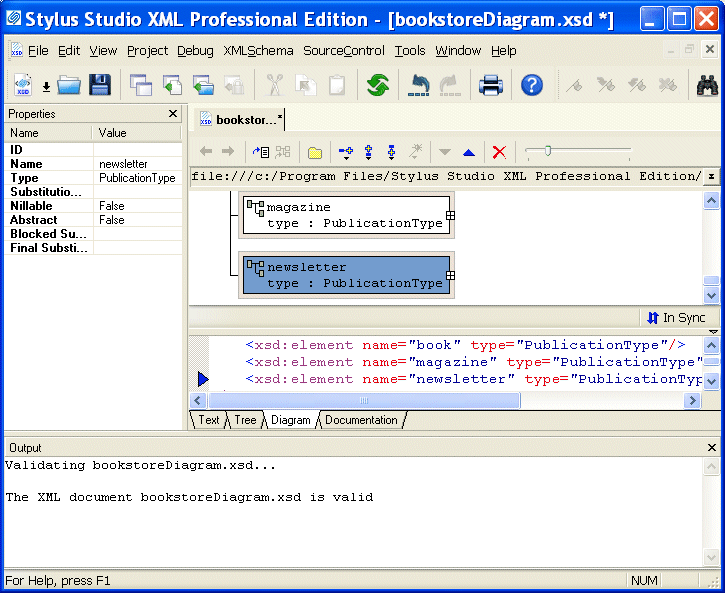
Stylus Studio displays a node for the new element in the XML Schema diagram canvas. The properties for the new element appear in the Properties window.
3. Type
book as the name of the new element and press Enter.
4. In the
Properties window, click the
Data Type field. Stylus Studio displays a drop-down list of built-in types plus any types you have defined.
5. Click
PublicationType.
6. Repeat
step 1 through
step 5 twice: once to add the
magazine element, and once to add the
newsletter element.
7. Click
Save
 .
.
The
8. Select
XMLSchema > Validate Document from the menu to validate the XML Schema document you created.
The validation message appears in the Output window, as shown in
|

XML PRODUCTIVITY THROUGH INNOVATION ™