Saving the Stylesheet and Previewing the Result

This topic is part of a sequence that starts with Opening the XSLT Mapper.

To save the stylesheet and preview the result:
1. Click Save . Stylus Studio displays the Save As dialog box.
2. In the URL: field, type BooksToCatalog.xsl.
3. Click the Save button.

This saves the stylesheet that Stylus Studio has generated. It does not matter that you have not finished mapping all nodes.

4. In the upper left corner of the XSLT Mapper, click Preview Result .

Tip


When you create a stylesheet using the XSLT Mapper, Stylus Studio automatically creates a scenario for you, using the source document you specify as the source document for the scenario. Scenarios and their value in the application development process are described earlier in this chapter. See XSLT Scenarios.

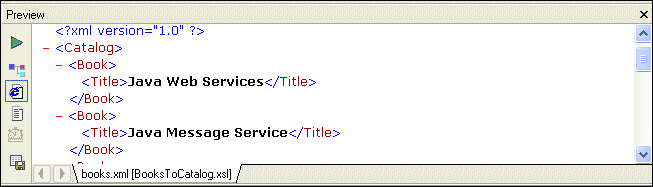
Stylus Studio displays the result of processing books.xml with the stylesheet you created in the XSLT Mapper in the Preview window.

Figure 51. Result of Applying XSLT to books.xml

The result document uses the same schema as the target document, catalog.xml in this example. Because not all nodes have been mapped yet, the result document does not contain all nodes found in books.xml ( author and subject nodes, for example).

5. You can confirm that the result document is incomplete by viewing books.xml. Click Open XML From Scenario , which is at the top of the Mapper tab.

Stylus Studio displays the books.xml document in the Stylus Studio XML Editor.

6. Review the XML document, and then click the document tab for the BooksToCatalog.xsl stylesheet to re-display the XSLT Editor.

DataDirect XML Converters Video Demonstration

DataDirect XML Converters are Java and .NET components that enable access to any data (flat files, EDI) from your application code. Learn how to deploy XML applications today.

Chemical Companies That Use Stylus Studio

When working in a lab it's always important to have the right ingredients. That's why top chemical companies use Stylus Studio 2006 to create the ultimate experiments. See which of these top chemical companies are using Stylus Studio today!

XML Editing Views

Stylus Studio includes three synchronized XML editing views: Text View, Tree View, and Grid View, allowing you to work with and edit XML documents in whatever way suits you best.

Advertise with Stylus Studio

Need to get your products and/or services in front of millions of qualified enterprise XML developers? Partner with Stylus Studio, the world's largest XML developer community!

Stylus Most Wanted

Site Map | Privacy Policy | Terms of Use | Trademarks
Free Stylus Studio XML Training:
W3C Member
Stylus Studio® and DataDirect XQuery™are products from DataDirect Technologies, is a registered trademark of Progress Software Corporation, in the U.S. and other countries. © 2004-2007 All Rights Reserved.