Cart
Cart|
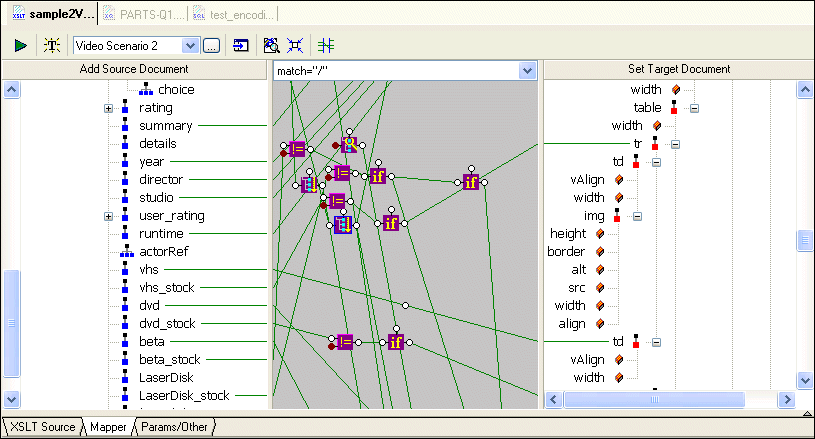
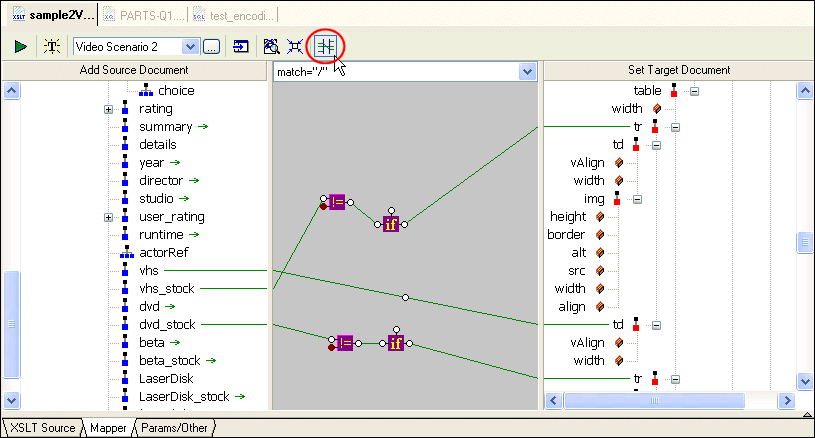
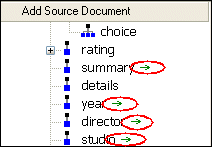
Home >Online Product Documentation >Table of Contents >Simplifying the Mapper Canvas Display Simplifying the Mapper Canvas DisplayBy default, the XSLT Mapper displays all links between source and target document nodes, regardless of whether or not the node associated with a link is currently visible in the Source Document or Target Document pane. Further, as your XSLT code becomes more complex, the mapper canvas can become dense with graphical representations of the functions defined in the code and the links that represent them. Consider this example of sample2Video.xsl, one of the sample XSLT stylesheets in the Examples project installed with Stylus Studio. You can hide links for nodes that are not currently visible in the Source Document or Target Document pane by clicking the Hide Links for Nodes that are not Visible button, as shown in Figure 216: When you use this feature, Stylus Studio displays
Other Mapper Display FeaturesIn addition to displaying links for only those nodes that are visible in both document panes, you can use the document node shortcut menu (right-click on a node in a document pane) to |

XML PRODUCTIVITY THROUGH INNOVATION ™