Cart
Cart|
Home >Online Product Documentation >Table of Contents >How to Create a Named or Matched Template How to Create a Named or Matched TemplateTo create a named or matched template:
1. Right-click the XSLT mapper canvas.
2. Select Create Template > Named Template or > Matched Template from the shortcut menu.
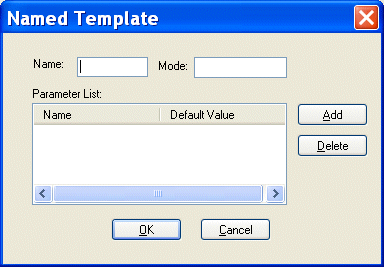
Stylus Studio displays the Named Template (or Matched Template) dialog box. (The Named Template dialog box is shown in Figure 237.)
3. Enter a name and, optionally, a mode.
4. Optionally, create one or more parameters:
a. Click the Add button.
The Name column becomes editable.
b. Type a parameter name and press Enter.
The Default Value field becomes editable.
c. Type a default value.
d. If you want to define another parameter, click ADD; otherwise, go to step 5.
5. Click OK to finish creating the template.
|

XML PRODUCTIVITY THROUGH INNOVATION ™