Home >Online Product Documentation >Table of Contents >Mapping Nodes in Sample Files
Mapping Nodes in Sample Files
This topic is part of a sequence that starts with Opening the XSLT Mapper.
To define links and examine the stylesheet Stylus Studio creates:
1. In the Mapper tab, expand the tree for both books.xml and catalog.xml.
Tip
|
|
You can display an entire tree using the asterisk key (*) on your keyboard's number pad.
|
2. In books.xml, place the pointer over the book repeating element.
3. Press and hold the left mouse button, and drag from book to the Book repeating element in catalog.xml.
Stylus Studio draws a line as you drag.
4. Release the mouse button to create the link between book and Book.
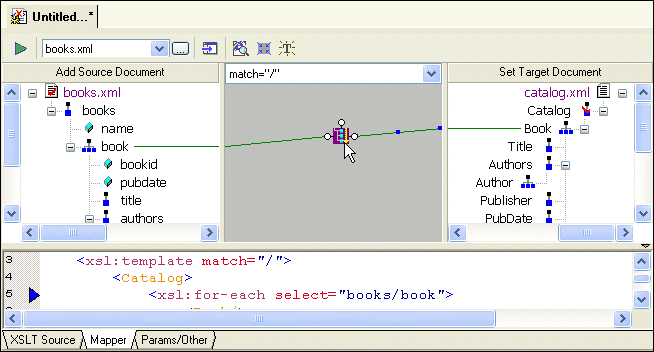
Stylus Studio creates an xsl:for-each block that links the book and Book repeating elements. (If you mouse over the block, xsl:for-each appears in a pop-up to indicate the XSLT operation represented by the link.)
Tip
|
|
If you prefer, you can render xsl:for-each as a simple line. You might want to do this to simplify the appearance of the mapper canvas. Select Tools > Options from the menu, and then navigate to Module Settings > XSLT Editor > Mapper.
|
|
Figure 30. xsl:for-each Block Displayed by the XSLT Mapper
Also notice that the complete xsl:for-each instruction has been added to the XSLT source, which appears in the XSLT source pane under the XSLT Mapper canvas. The back-mapping pointer identifies the line of XSLT that was just added to stylesheet.
The template contains an xsl:for-each instruction that selects the book element, which is the node you selected in step 2. The output from this template is an empty Book element, which is the node that was the target of the link. Stylus Studio created the Catalog element automatically, to provide the document structure necessary to support the Book element.
Tip
|
|
By default, Stylus Studio creates an xsl:value-of instruction when you link one element to another; Stylus Studio creates an xsl:for-each instruction if you link two repeating elements. You can also create other types of instructions graphically, including xsl:if, xsl:choose, and xsl:apply-template.
|
5. Click the Params/Other tab.
In the Output method: field, display the drop-down list and select xml. (Even if the setting for Output method is unspecified, Stylus Studio still generates XML.) Other choices for the output method include text and HTML.
6. Click the Mapper tab.
The xsl:output instruction is added to the XSLT source:
<xsl:output method="xml"/>
|
7. Create another link from the title element to the Title element.
Note
|
|
When you map, you always map from the source document to the destination document.
|
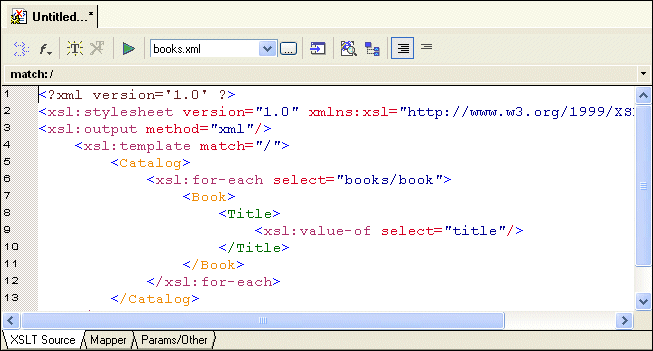
8. Click the XSLT Source tab to see the new instructions in the template. (If you prefer, you can simply adjust the splitter between the XSLT source pane and the XSLT Mapper canvas.
|
Figure 31. Stylus Studio Builds XSLT Based on the Mapper Links
For each link you define, Stylus Studio adds instructions to the template that matches the root node. In the XSLT you have composed so far, the XSLT inserts a Book element for each book element it finds in the source document. In the Book element, the stylesheet selects the title elements. For each title element, it inserts a Title element. Finally, in each Title element, the stylesheet extracts the value of the current context node, which is the title node.
Why does the stylesheet extract the value of the title nodes but not the book nodes? The title node has only a text node as its child. In this situation, the default is that the XSLT Mapper inserts an xsl:value-of instruction.
 Cart
Cart